Using the Unclaimed Electronic Payment Report

The Unclaimed Electronic Payment Report was designed to help campus organizations identify their unclaimed electronic payments. The UCI General Accounting Team recommends that business offices review the report at least once a month to see they have any payments to claim.

The instructions below explain how to complete a basic General Error Correction to claim an unclaimed deposit in KFS.

Selecting an Unclaimed Deposit to Process

The Unclaimed Electronic Payments Report is located in ZotPortal, under KFS Decision Support, General Ledger - Campus Reports.

ZotPortal navigation showing the Unclaimed Electronic Payments Report location under KFS Decision Support, General Ledger - Campus Reports
Navigation path in ZotPortal.

Once you've scanned the report and have found the unclaimed payment you wish to claim, make a note of the Entry ID number to the right of the Ledger Amount.
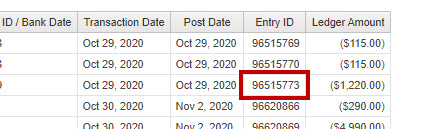
Unclaimed Electronic Payments Report row highlighting the Entry ID number displayed to the right of the Ledger Amount
The Entry ID noted here will be used to locate the entry in the General Error Correction search in the next step.

Process a General Error Correction in KFS, and search for the entry you would like to correct.
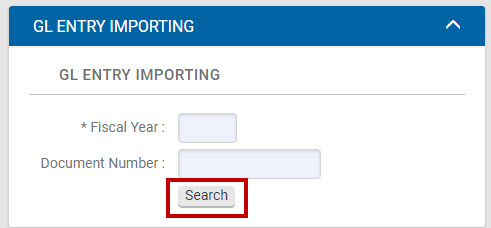
KFS General Error Correction search screen used to look up entries for correction
The GEC search screen as it appears in KFS.

In the search selection screen, scroll to the bottom and enter in the Entry ID corresponding to the unclaimed payment you wish to claim.
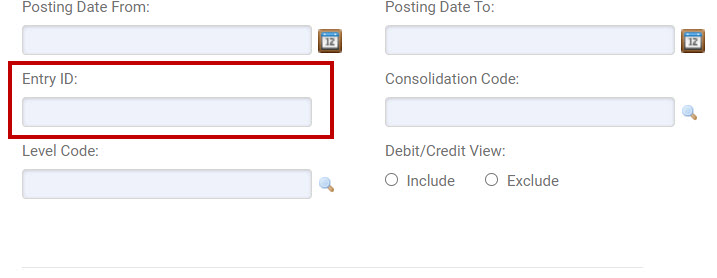
GEC search selection screen with the Entry ID field at the bottom for entering the unclaimed payment's Entry ID
Entering the Entry ID at the bottom of the screen narrows results to the specific unclaimed payment.

Selection Buttons

Once one or more entries that need to be corrected are found, use the "Select" checkboxes to choose the entries to import into the From section of the GEC.

After checking the appropriate "Select" checkboxes, use the Return Selected button.
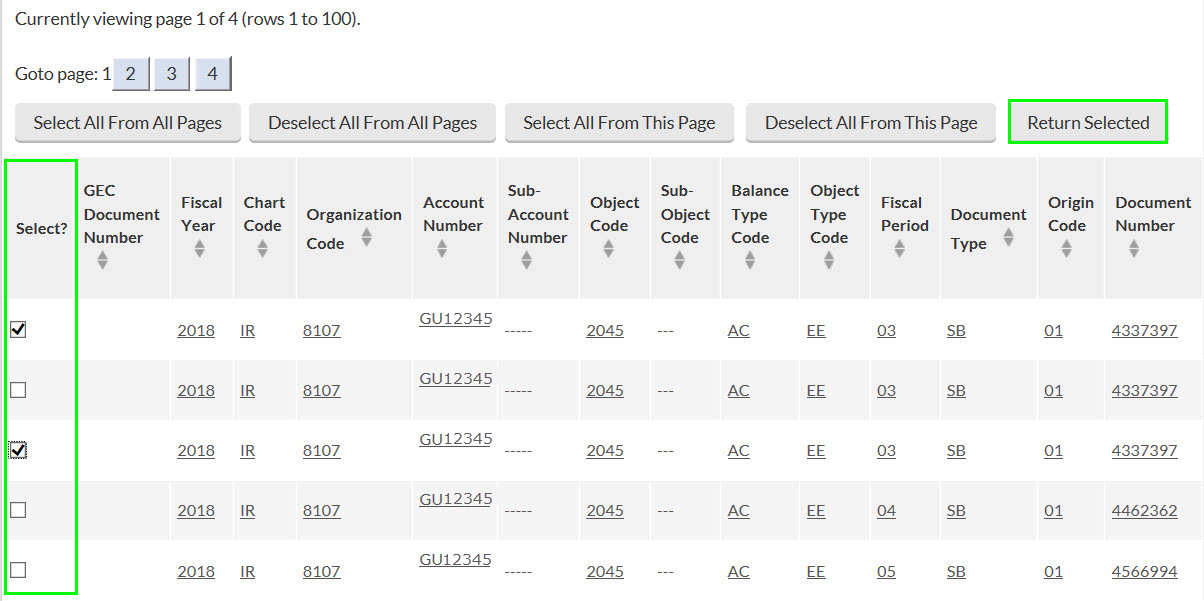
GEC search results displaying 'Select?' checkboxes next to each entry and a Return Selected button for importing chosen entries into the GEC From section
Selected entries are returned to the GEC using the Return Selected button.

Using the Selection Buttons will populate the selected entries into the From section of the Accounting Lines.
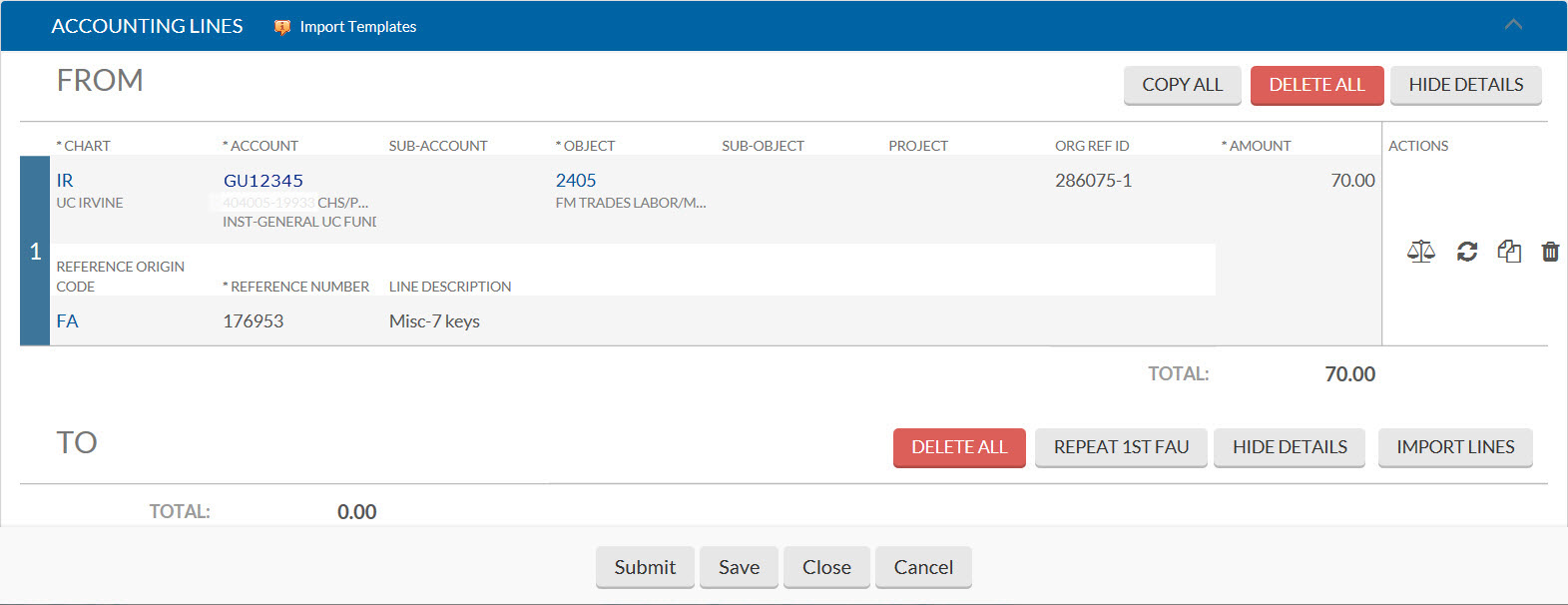
GEC Accounting Lines section showing the From area populated with selected entries after using the Return Selected button
Confirm the populated entries in the From section are correct before proceeding with the correction.

GEC Help

For more help on how to process a GEC, see the General Error Correction Guide.


Fiscal Year-End Close

While the Unclaimed Electronic Payment Report should be reviewed monthly, campus financial managers should also plan to review it as part of their closing process.

This step is essential because prior year deposits may not be available to claim in the next fiscal year as all income must be reported in the year received.

If you have issues related to prior year payments, please contact General Accounting for help at general-accounting@uci.edu.


C&G Undistributed Deposits

The Contracts & Grants Accounting team maintains a separate list of C&G undistributed checks and ACH deposits.

If you identify a payment related to contracts & grants funding in either report, you should first contact Griselda Duran in Contracts & Grants Accounting before claiming the payment.