Monthly KFS Ledger Snapshot Reports
UCI now offers Monthly KFS Ledger Snapshot Reports—four essential financial reports that are automatically run for most campus accounts after monthly final transactions are posted to Decision Support.
Snapshot Reports are saved for later viewing as PDF files and broken out by organization. They do not include closed accounts, and only Irvine Chart (IR) organizations are available. The reports available are:
- Account Summary Report (Replacement of FS0100, FS0200)
- Fund Summary Report (Replacement of FS0150D)
- Account Transaction Report
- Ledger Reconciliation Report
Using KFS Ledger Snapshots
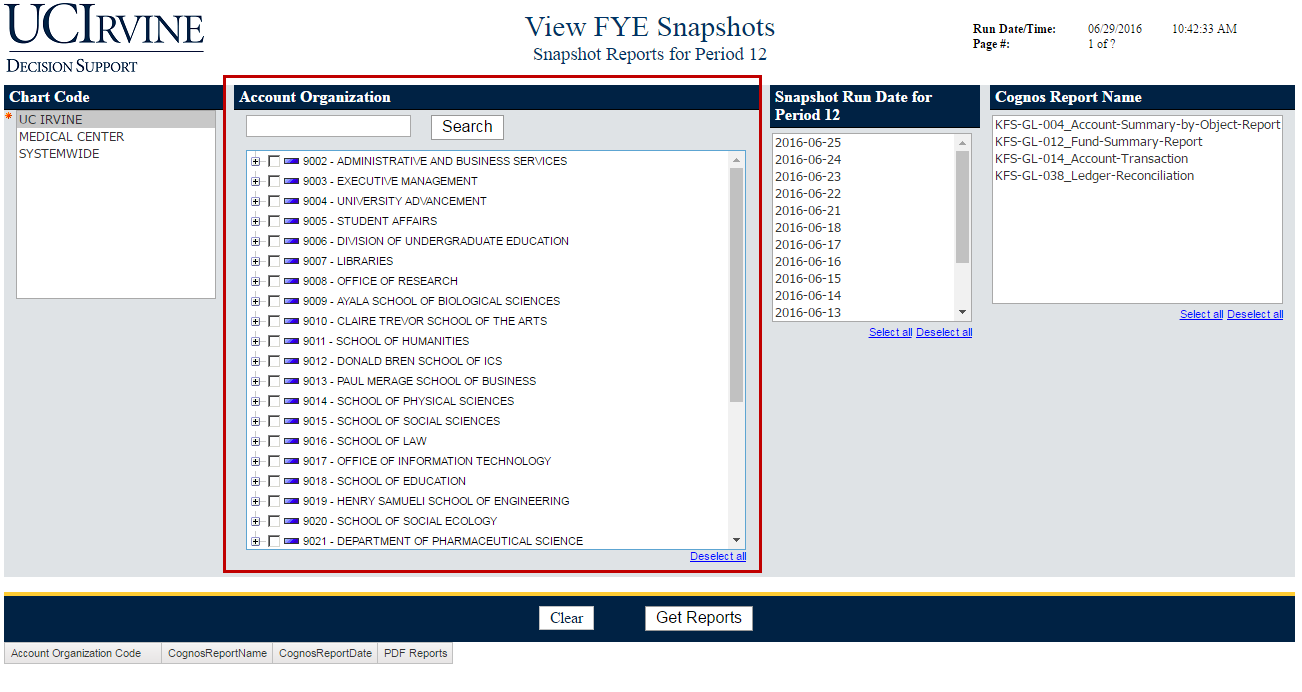
See the sidebar to the right for link location. Once you open the KFS Ledger Monthly Snapshots link, you are presented with several prompts.
- Account Organization is the only prompt that requires a selection. You can find your organization using the search box or by navigating the organization tree.
- KFS Ledger Monthly Snapshots will limit your search to a particular date or range of dates. Keep in mind that the Snapshot Date refers to the day the report was generated and reflects any changes up to the night before.
- Cognos Report Name is optional and can be used to limit your search to a particular report or set of reports.
Selecting Orgs in the Organization Tree Prompt
You can search for your Account Organization Code by typing it, or any portion of it, into the Search box and clicking the Search button. The results will show the highest level of the Account Organization hierarchy containing the number you entered, and it may be necessary to expand the org tree to find the particular organization you're interested in.
In the example below, we've searched for "055" and found that there are two hierarchies containing that number. The organization hierarchies start out collapsed, so you should click the expand button  to reveal the hierarchies' details. The Snapshot Report tool will also display a listing of all of the reports found for the entry made in the search box.
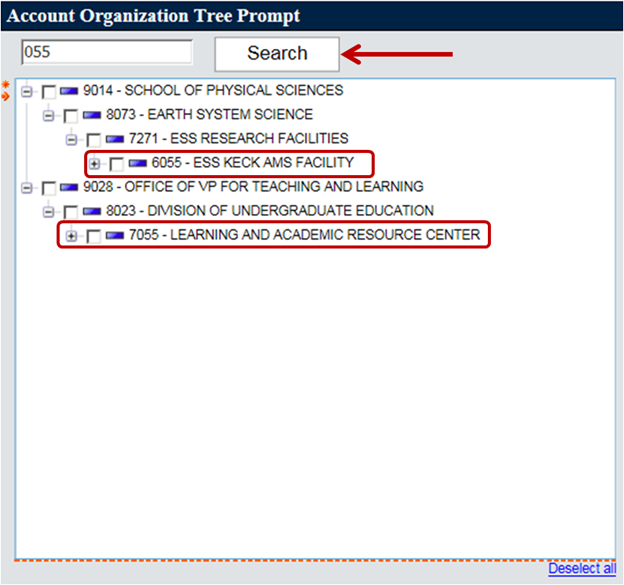
To find your organization, click on the expand button next to an Organization Code to see the next level down. You might need to do this several times to get down to your organization. Once the bottom of the hierarchy has been reached, the expand button will not be displayed. (A hierarchy level of dashes  can be ignored.) To collapse a level, click the collapse button
  .
.
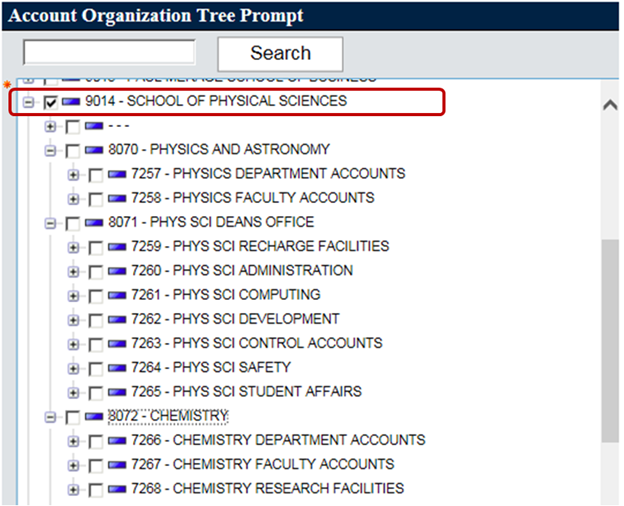
When you've found the level of the Account Organization Code hierarchy you want to search, select it by clicking the checkbox next to the Account Organization Code and then click the Get Reports button. All Account Orgs at or below the level selected will be displayed. Multiple Account Organization Codes can be selected by checking any number of boxes next to the Account Organization Codes in the tree prompt box.
In the below example, marking the checkbox next to Organization Code 9014 in the Tree prompt selected Account Organization Code 9014 and all the levels that roll up into 9014.
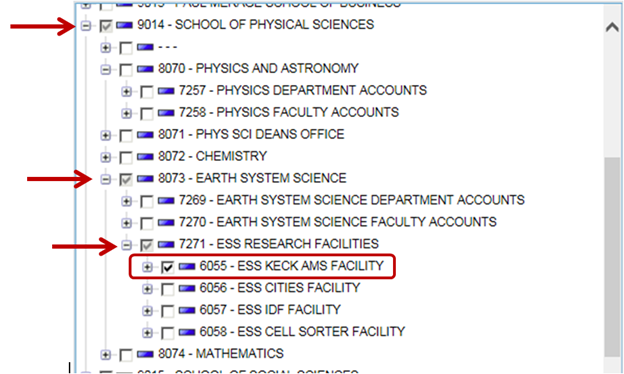
If a lower level is selected, a breadcrumb trail showing the roll up levels of the hierarchy for the selected Account Organization Code will be shown. In the example, notice that the selected Account Organization Code, 6055, is the only level selected. The upper level checkboxes are grayed out (see red arrows). Only the reports for the selected Account Organization Code level will appear when the Get Reports button is clicked.
Opening Snapshot Reports
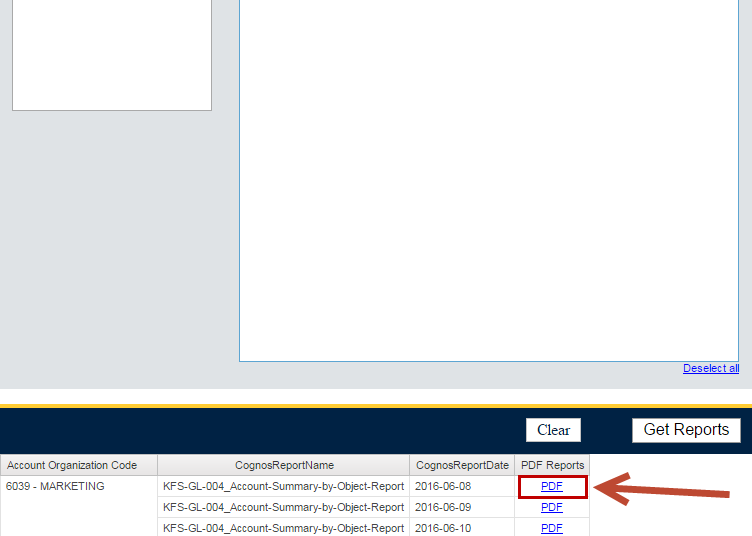
Once you've entered or selected an Org, the Snapshot Reports available will be listed at the bottom of the page in a table. The columns will show with the Accounting Organization Code, the report name, the date the report was generated, and a link to the PDF. Clicking the PDF link will launch the FileNet viewer in a new browser tab. We recommend viewing reports one at a time.
Downloading and Printing
Once the FileNet viewer is open, you can navigate the PDF using the toolbar on the top of the page. To download the PDF, click the Download button. To print all pages, click the Print All button. Please be aware that popup-blockers may block the process to download or print the report. Be sure to disable the pop-up blocker for the page in order to complete the print or download.
