Entertainment Reimbursement FAQ
Below are some frequently asked questions. Click any question to expand the answer.
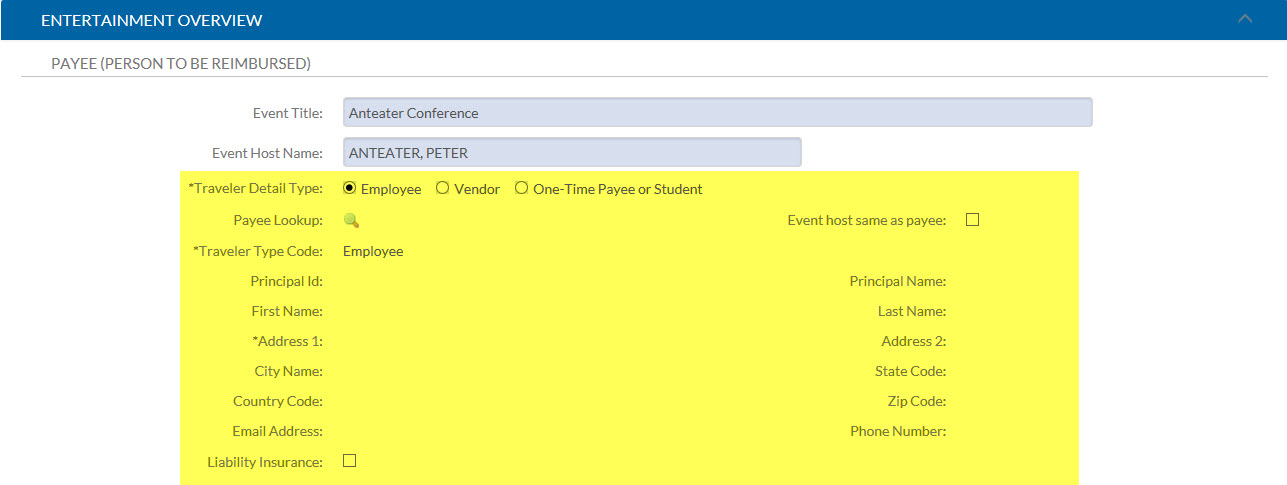
Double check to make sure all required information has been entered into the document. If a document has a host, but no payee the document will give an error when the submit button is selected.
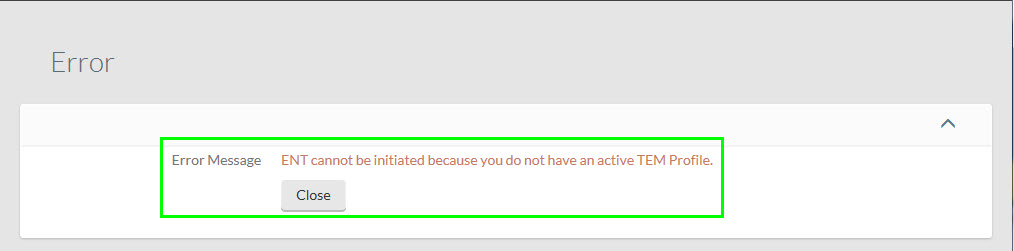
A TEM profile is required for anyone who processes TEM documents. This error lets you know that you need to set up your TEM profile.
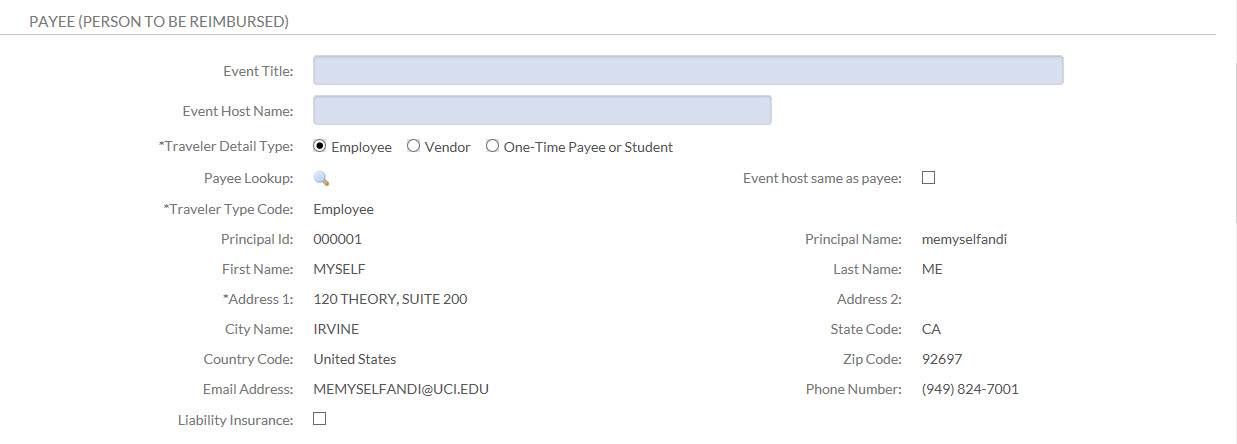
If your own information populates into the Payee section, this means that you are not an arranger for anyone. If you only need to process vendor or one-time payee reimbursements, you can add yourself as an arranger to your own profile.
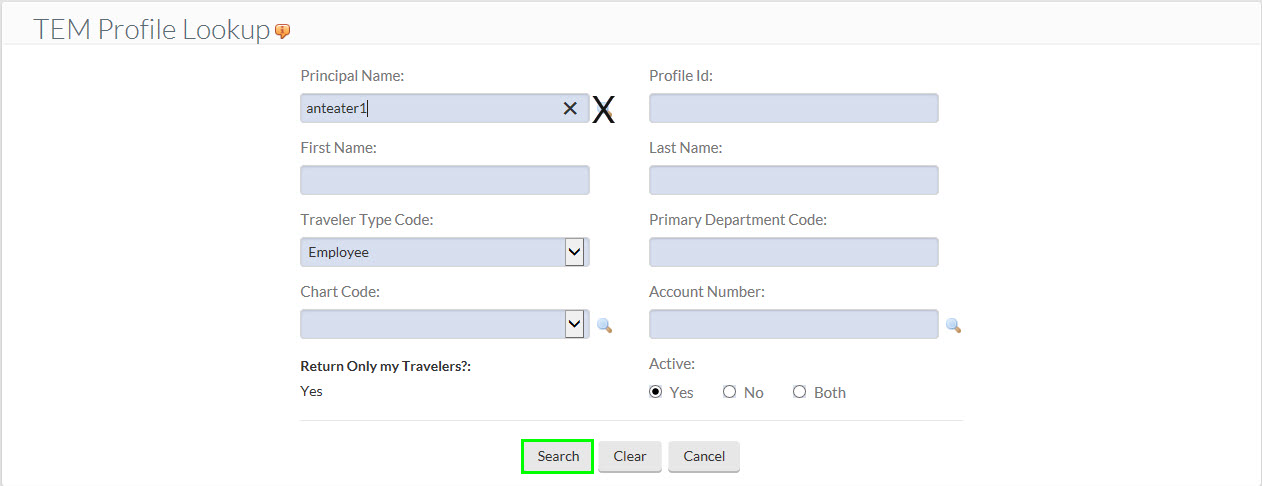
- Selecting the TEM Profile Lookup takes you to a lookup screen that only shows employees that you have access to as an arranger, and that have a current TEM Profile. You can see all employees that you are an arranger for and that have a Profile by selecting the ‘search’ button at the bottom of the lookup scree
- Do not click on the magnifying glass icon next to the Principal Name field, unless you want to look up someone’s UCInetID (since this is a separate lookup screen). Selecting the Principal Name lookup will take you to the Person lookup (which shows all employee names/information), and populates the UCInetID field in the TEM Profile Lookup. However, if the traveler/payee does not have a profile or you are not an arranger them, you will not be able to populate your TEM document with their information.
- Check to see if the previous reimbursement you performed was actually using a TEM document, and was reimbursing them as an ‘employee’ and not a one-time-payee.
- There may been a change in an employee’s Primary Department Code. This happens sometimes when an employee has a split appointment or any sort of funding update done in Payroll. If this is the case, the employee’s Department Security Administrator can contact OIT (oit@ucu.edu) and request that the employee’s Primary Department Code have an Override done. (They should include the employee’s name, UCInetID, and new primary department code in the email).
- There may be a change in the employee’s payroll status.
- If an employee’s appointment status is inactive, they won’t be able to create a TEM Profile.
- If the employee’s appointment had ended, their TEM profile may have been inactivated. The department payroll coordinator should be consulted to ensure their appointment is active/current. Arrangers can use the TEM Profile Report to search for inactive TEM Profiles.
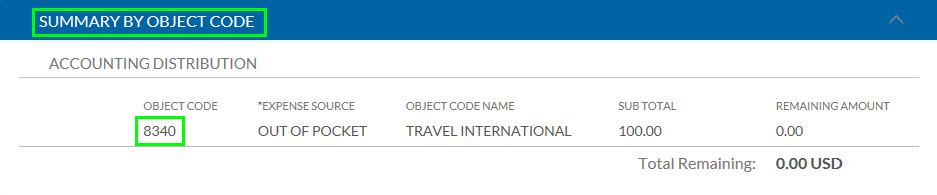
The “Summary by Object Code” tab lists the acceptable KFS Object Codes to be used for this reimbursement. These object codes were determined by the expense types identified in the Actual Expenses tab. No other Object Codes may be used on this eDoc, and users will get a warning/error if they try to input a different object code in the “Accounting Lines” tab.
The Entertainment Reimbursement does not rout to the official host for approval. The host must sign the TEM Host Certification which must be sent to sScanning or uploaded to the Image Scanning tab of the ENT e-Doc.