Create or Edit Sub-Account
Sub-Accounts are an optional part of the accounting string that allows tracking of financial activity within a particular account, departments and schools can use the five charachter Sub-Accounts for their own tracking and reporting purposes. Central Contracts and Grants Accounting will create sub-accounts for Cost Sharing on specified contracts or grants, and those Sub-Accounts will begin with the letters “CS”.
Instead of creating new accounts you can specify a sub-account within an existing account, to apply tracking and reporting on a general ledger entry for budget, actuals, and encumbrances. Sub-accounts are often used to help track expenses when several activities are funded by the same account or the same sub-account number can be used for multiple KFS accounts to track similar activities across multiple accounts.
Sub-Accounts are set up to the specific KFS Account, and can only be used if selecting the KFS account, for example, a large organization may have money in a general account that is used by several different areas of that organization. The organization might segregate the budgets for each of the areas into Sub-accounts such as "Marketing," "Research," and "Recruitment." When expenses are applied to the account they can be allocated to the sub-account level, allowing direct comparisons between the budget and the actual income and expenditures of these smaller categories, because all of the activity is still within a single account, it is still easy to report on the finances of the overall account.
To establish a Sub-Account, users can initiate a Sub-Account document.
How to Access
- Log in to ZotPortal and select the Finance/KFS Tab.
- If accessing from off-campus, make sure you are logged into the Software VPN.
- Navigate to the Chart of Accounts section.
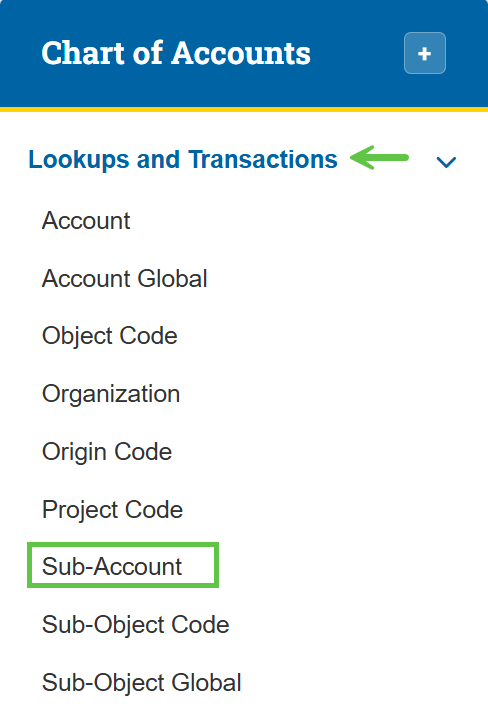
- Expand the Lookups and Transactions menu.
- Select Sub-Account

Tip: For step-by-step instructions with screenshots on how to access KFS from the KFS homepage and use the Jump To box (Ctrl+K / Cmd+K) for quick navigation, see the KFS Access Guide.
If you need help logging into the OIT Software VPN, or are unsure about your KFS access, see Accessing the Kuali Financial System. This page also helps you identify your Department Security Administrator (DSA), who can assist with access issues.
Edit a Sub-Account
To edit a pre-existing sub-account: Search by KFS Account Number or Sub-Account Number and select ‘edit’ next to the desired sub-account.
Create a Sub-Account
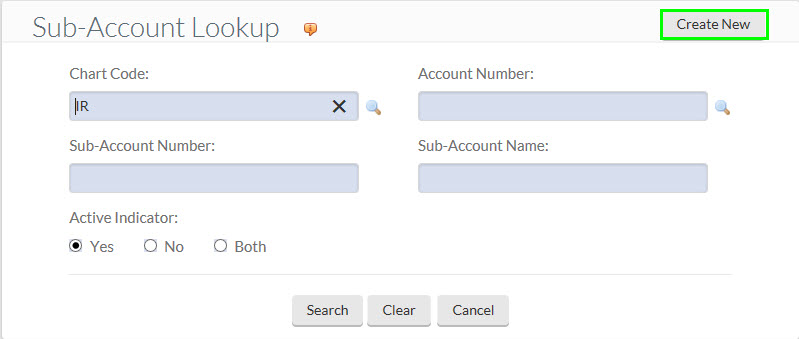
To create a new sub-account: Click on the Create New button. If you don’t see it, you do not have the Chart of Accounts Maintenance User role. Department Security Administrators (DSA’s) can grant the Chart of Accounts Maintenance User role in KSAMS.
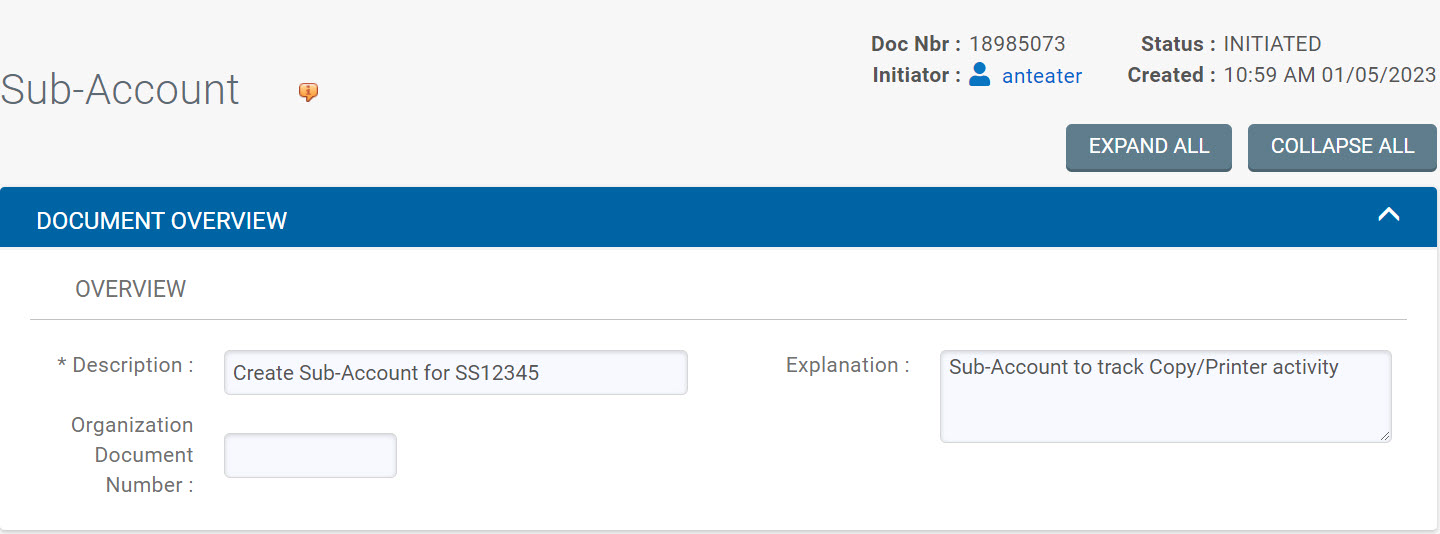
Enter a Description and Explanation.
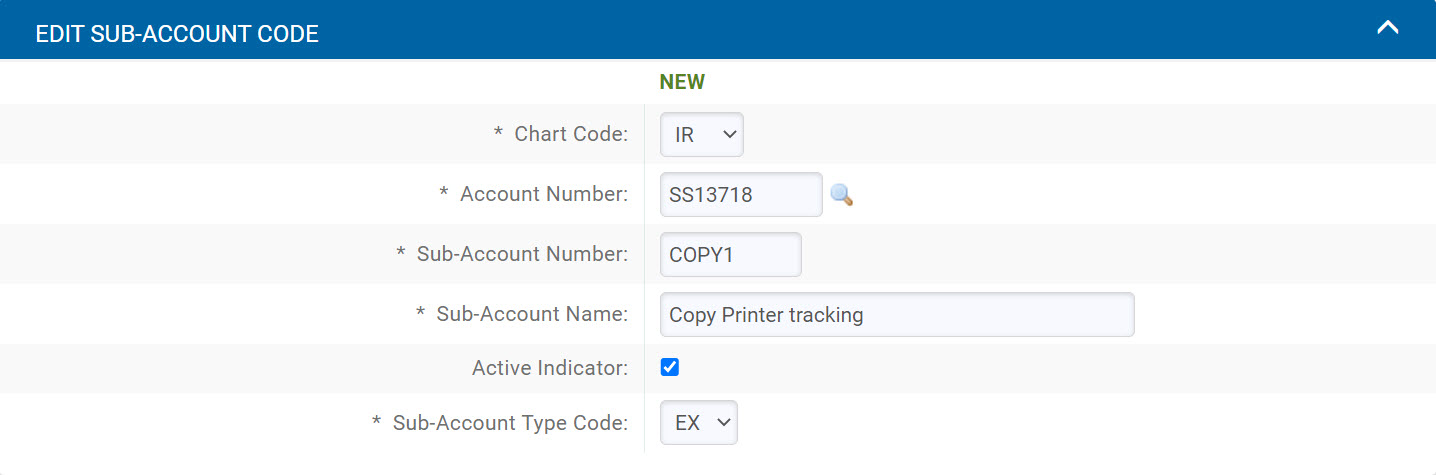
Edit Sub-Account Code required fields
Chart Code: The Chart Code should be the same as the chart code of the KFS account entered into the Account Number field.
Account Number: Enter the KFS account number that the expenses tracked by the sub-account should be posted to.
Sub-Account Number: The alpha-numeric number that should be assigned as a sub-account.
Sub-Account Name: The name that should be assigned to the sub-account.
Chose EX for an expense account. If a cost-sharing sub-account is needed, please contact Contracts and Grants Accounting.
Edit Sub-Account Code optional fields
Active Indicator: By default, the Active Indicator will be checked if the sub-account should no longer be used, uncheck this box.
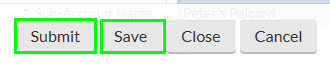
Once the Document Overview tab and the Edit Sub-Account Code have been completed, the eDoc can be saved and submitted.
The Edit Financial Reporting Code isn't used or available at UCI.
The Edit Co-Cost Sharing tab is no longer used at UCI since UCI replaced Sub-Account Cost Sharing with the C&G Cost Sharing application/system.