How to Register for KFS Training on UCLC

This quick guide will walk users through the process of registering for both Instructor-Led and Online training for Kuali Financial Stystem (KFS) training.

Online Training (eCourse)

Navigate to uclc.uci.edu then click on the magnifying glass icon to search for training.

UC Learning Center homepage search bar with a magnifying glass icon for finding training courses
Use the search bar at the top of the UCLC homepage to find KFS training courses.

Find the desired course and select the Register link from the drop down menu.
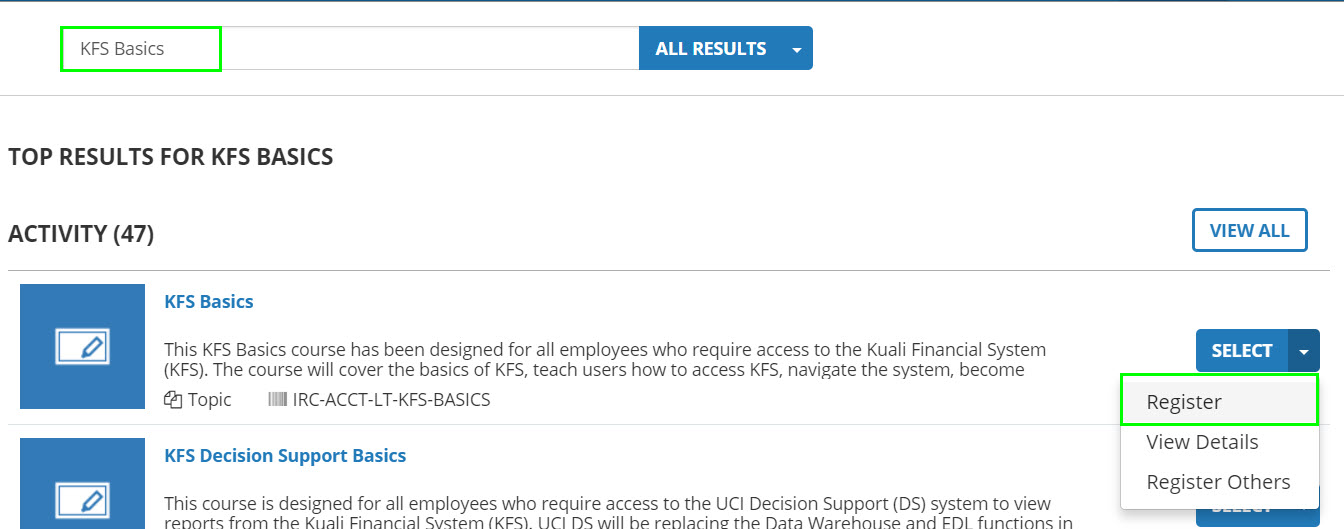
UCLC course listing showing a dropdown menu with the Register link highlighted
Select Register from the course dropdown menu to begin the enrollment process.

Select the check box of the desired course. When the course is selected the NEXT button will become available. Select the NEXT button.
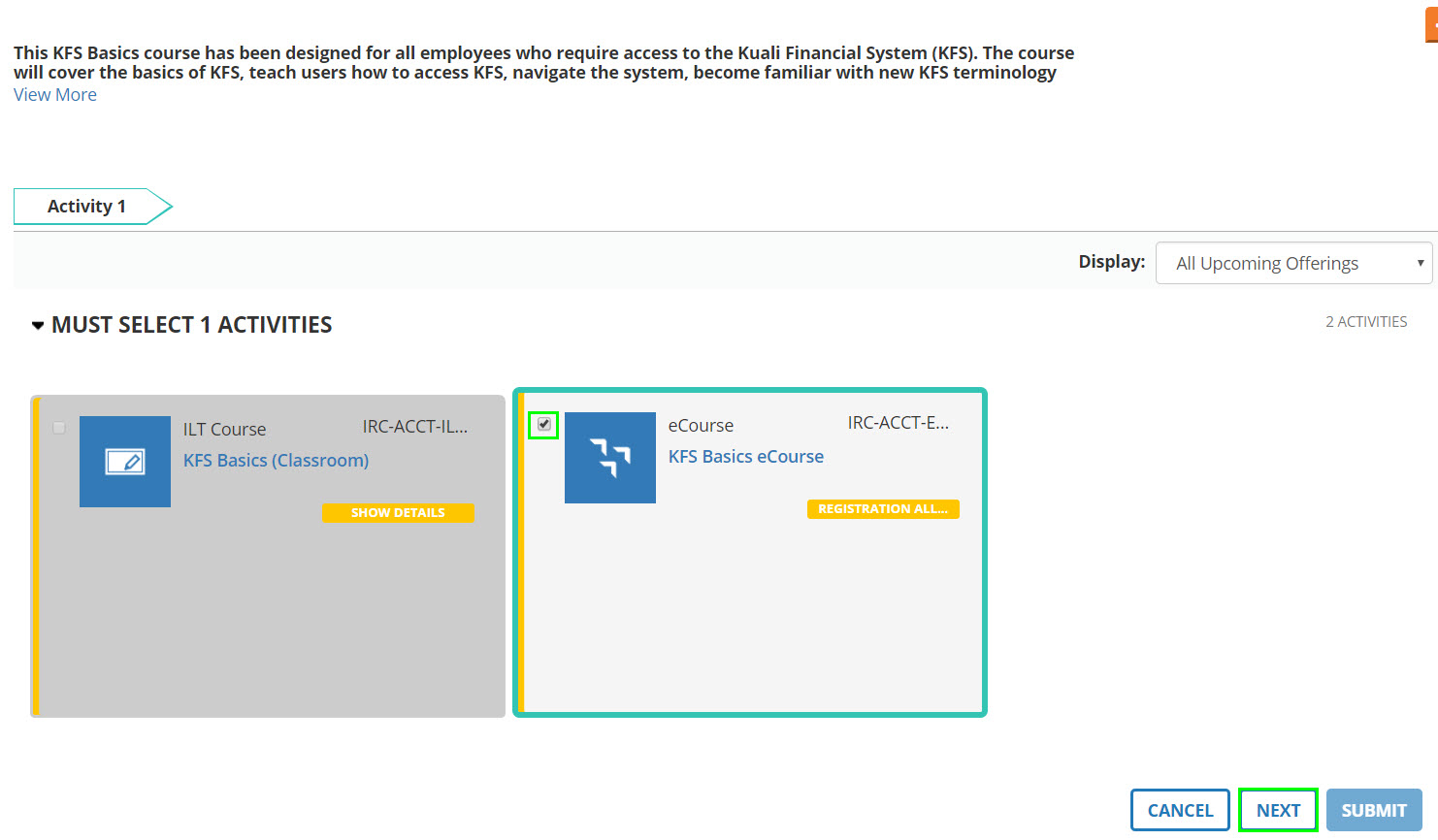
UCLC eCourse registration screen with a course checkbox selected and the NEXT button activated
Checking the course checkbox activates the NEXT button, which must be clicked to proceed.

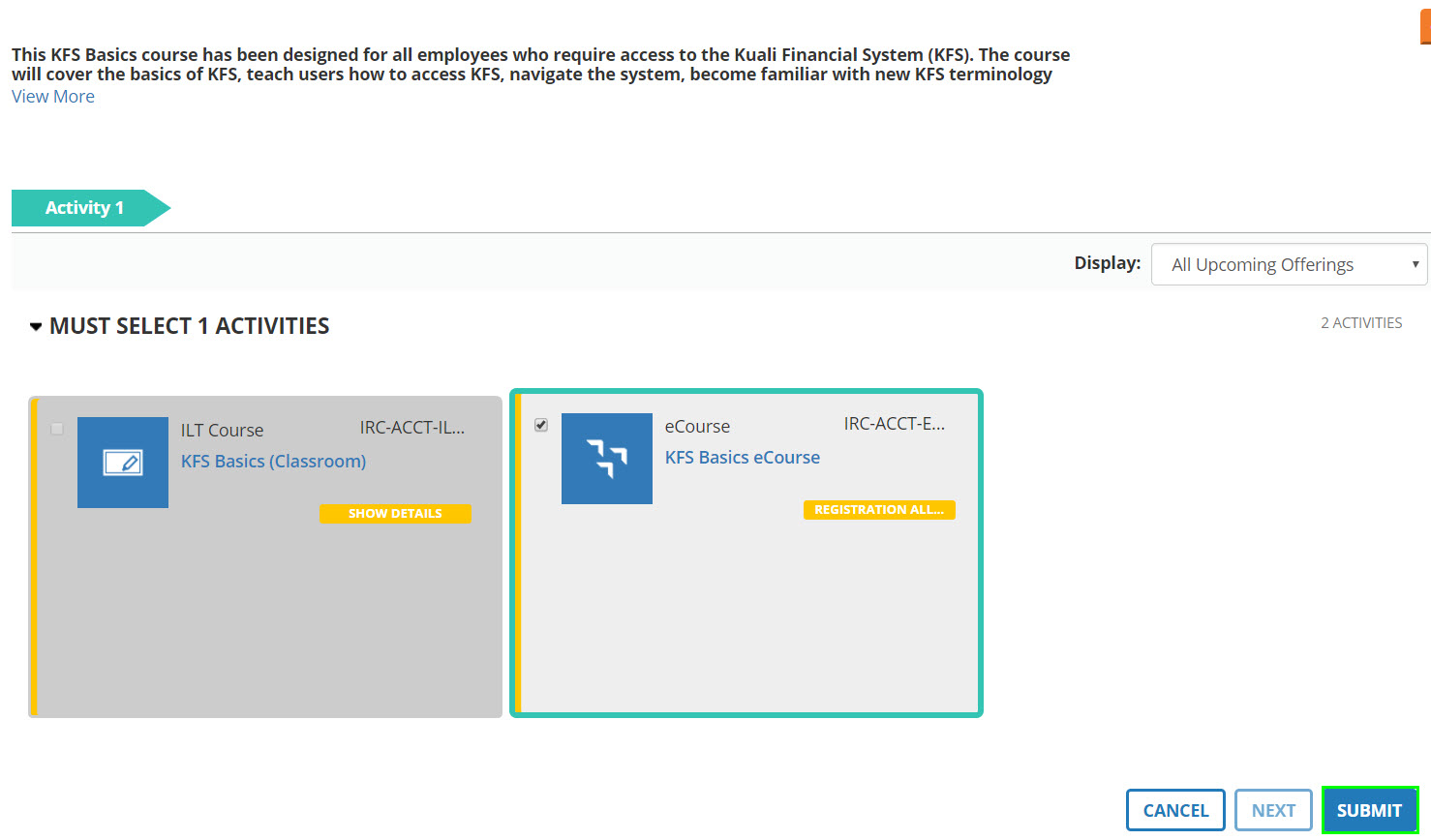
Select the SUBMIT button.

UCLC registration confirmation screen displaying the SUBMIT button
Click SUBMIT to complete your eCourse registration.

At this point a REGISTRATION BLOCKED message may appear if the user has not taken the required prerequisites. Users can click on the orange REGISTRATION BLOCKED link to see why registration is being blocked and what prerequisites are required. In this case the user is the instructor of the class and cannot register.

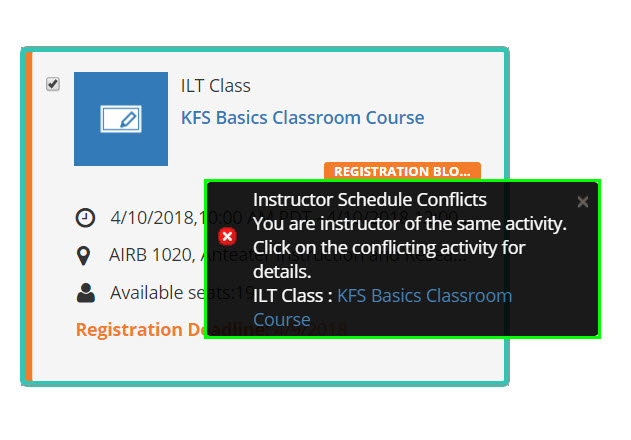
UCLC registration screen displaying an orange REGISTRATION BLOCKED message
The REGISTRATION BLOCKED message appears when prerequisites have not been completed or another restriction applies. Click the orange link to view the specific reason.
UCLC blocked registration details screen showing the specific reason registration was denied
The blocked reason screen explains why registration was prevented, such as the user being assigned as instructor for the course.

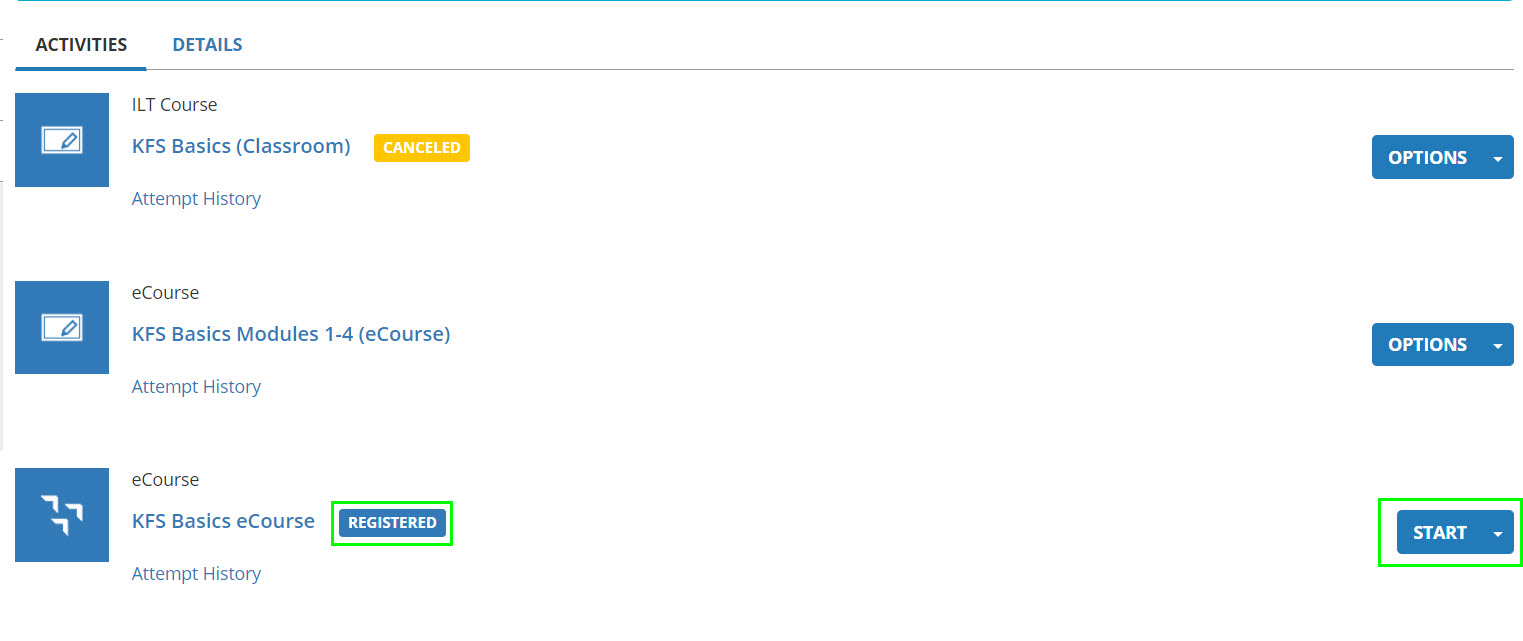
If there are no registration issues, the user can now see that they are registered for the class and can select the START button.
UCLC course page showing a successful registration confirmation with the START button available
A successful registration displays the START button, allowing the user to begin the eCourse immediately.

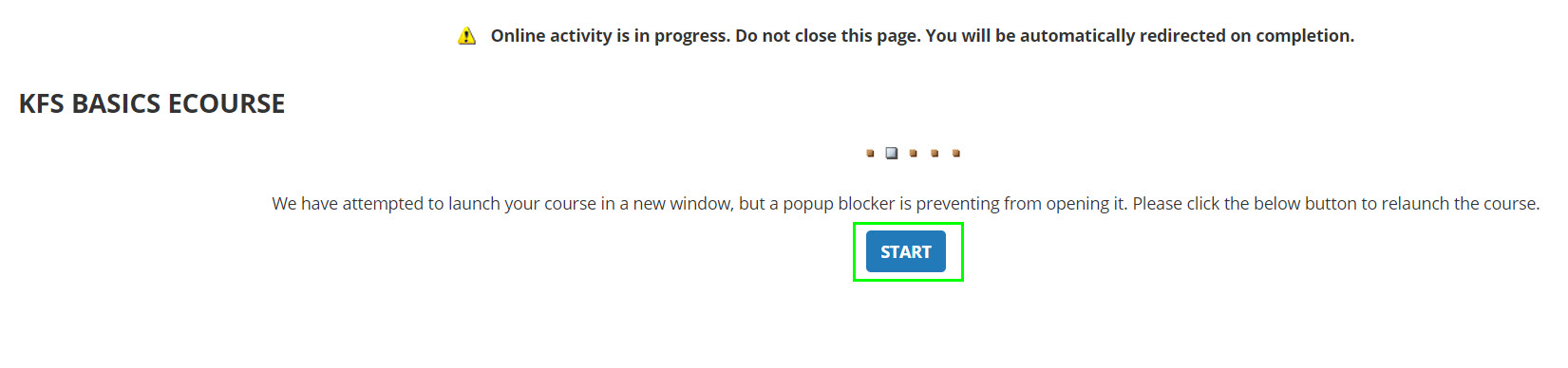
Depending on the users settings they may be asked to select a second START button.
UCLC secondary START button prompt that may appear based on user account settings
Some users may see a second START button prompt depending on their account settings.

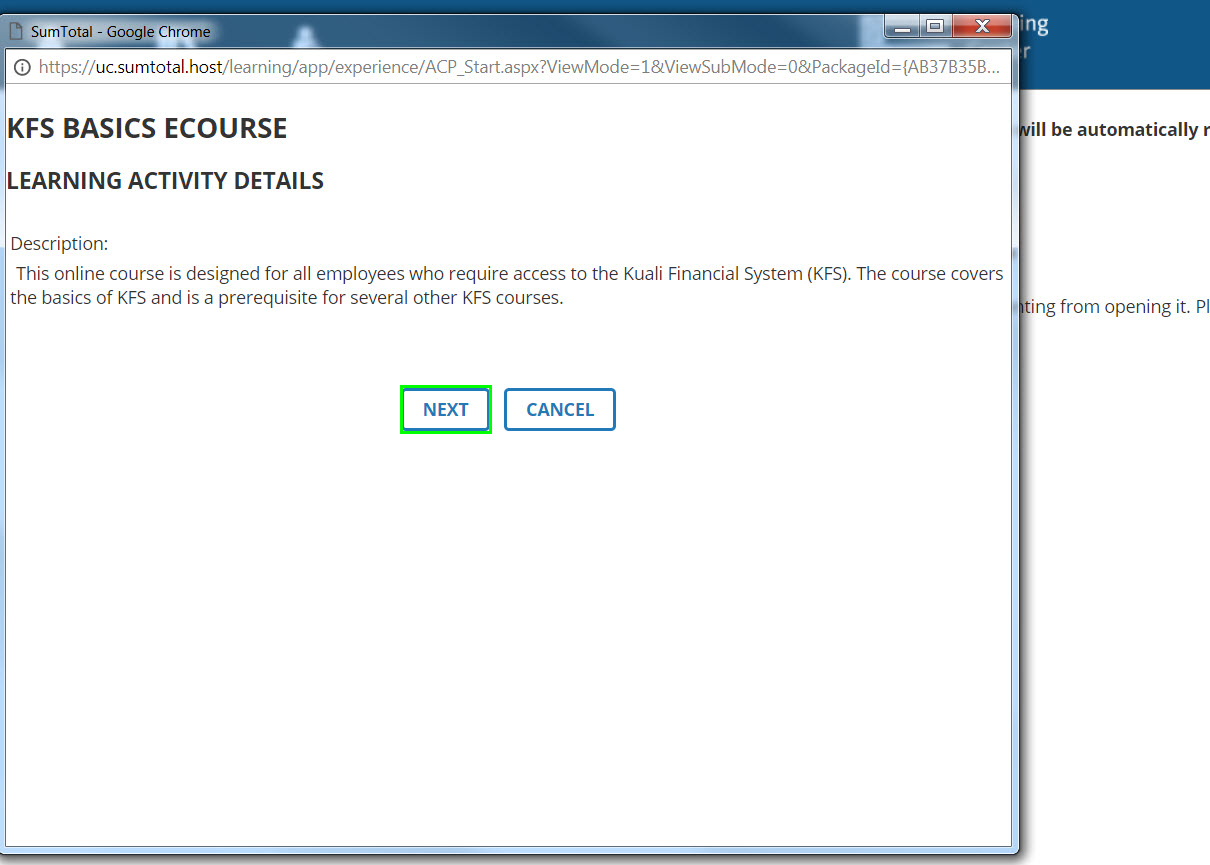
Select the NEXT button to continue to the eCourse.
UCLC screen displaying the NEXT button to proceed into the eCourse content
Click NEXT to enter the eCourse after completing registration.

For REGISTRATION BLOCKED or questions regarding KFS prerequisites, please contact the KFS help desk kfs@uci.edu. For ANY OTHER questions or issues regarding the UCLC system, please contact the UCLC help desk uclearningcenter@uci.edu.

Instructor-Led Training (Classroom)

Go to uclc.uci.edu then click on the magnifying glass icon to search for training.

UC Learning Center homepage search bar with a magnifying glass icon for finding training courses
Use the UCLC search bar to find the desired Instructor-Led Training course.

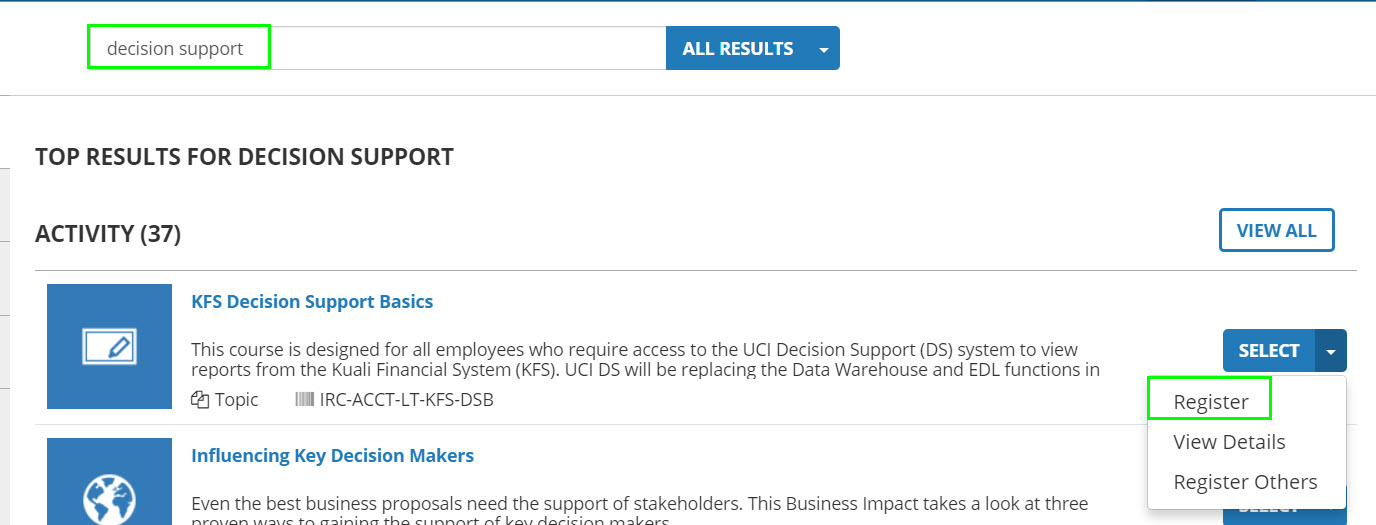
Select the Register link from the dropdown menu.
UCLC course listing showing a dropdown menu with the Register link for an Instructor-Led Training course
Select Register from the dropdown to begin enrolling in the ILT course.

Select the check box in the ILT Course box.
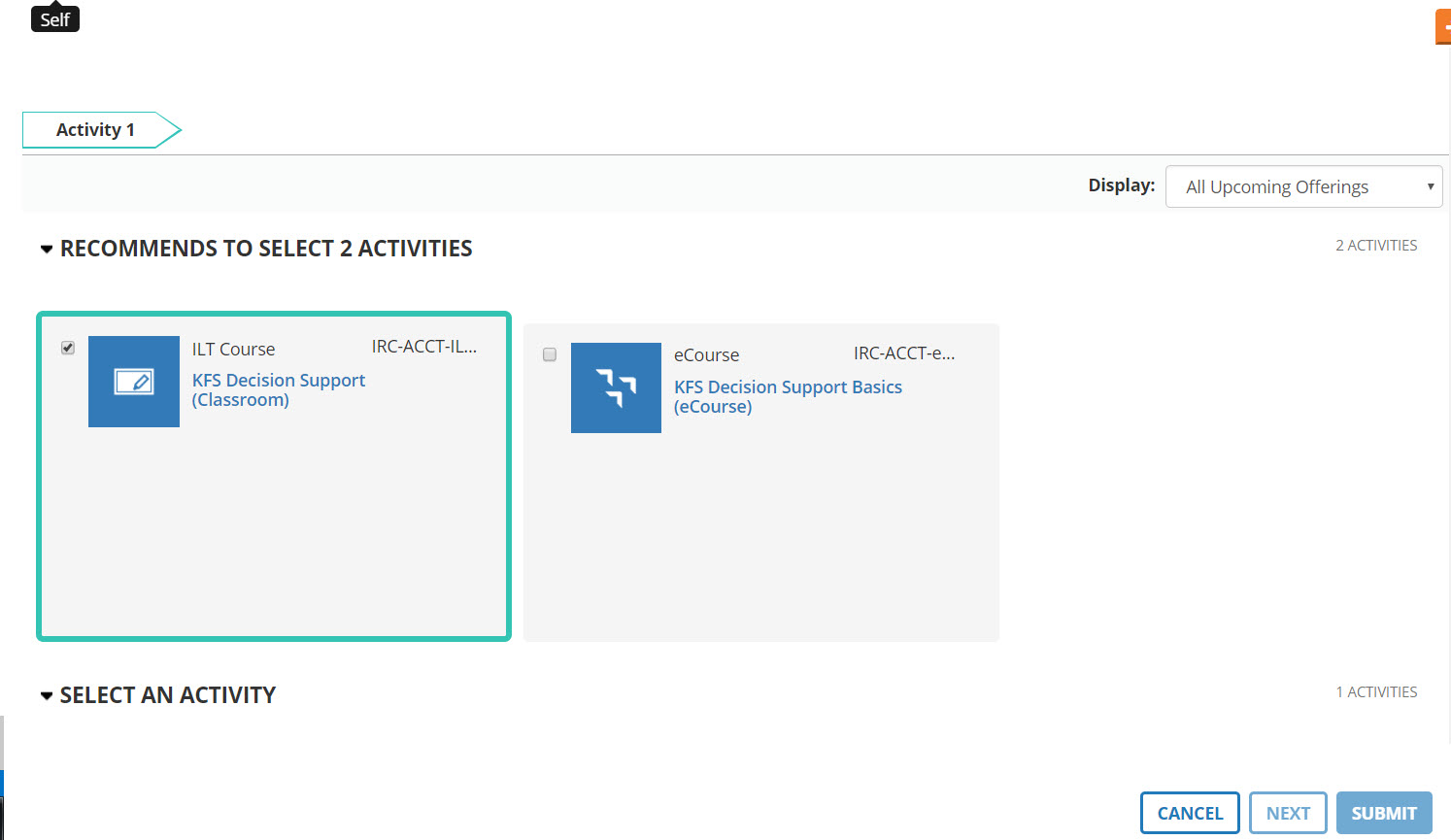
UCLC ILT Course registration screen with a checkbox to select the course
Check the box in the ILT Course section to select the course for enrollment.

Select the checkbox of the desired scheduled course, then select the NEXT button.
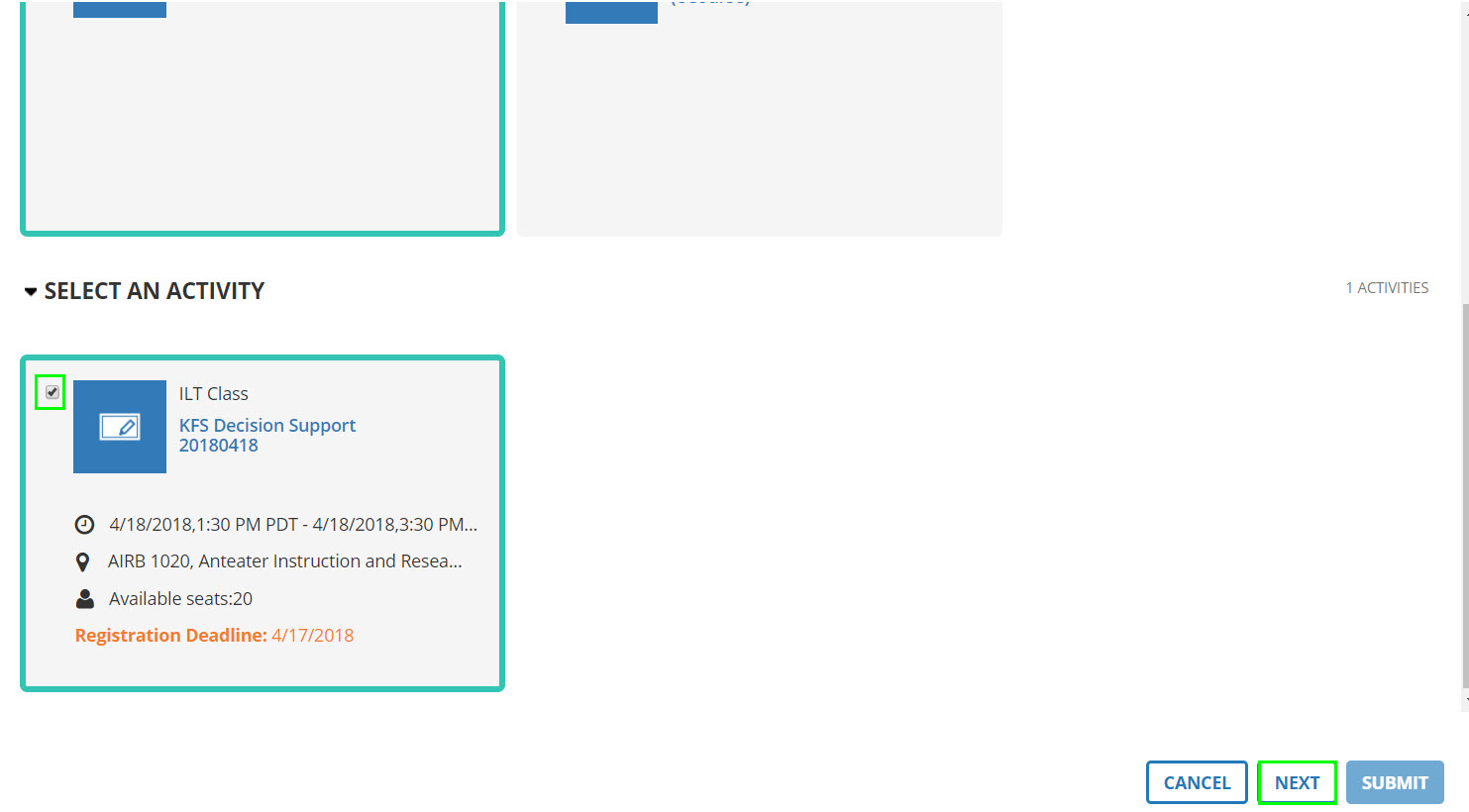
UCLC ILT scheduled course list with a session checkbox selected and the NEXT button available
After selecting the desired scheduled session, click NEXT to continue.

Select the SUBMIT button.

At this point a REGISTRATION BLOCKED message may appear if the user has not taken the required prerequisites. Users can click on the orange REGISTRATION BLOCKED link to see why registration is being blocked and what prerequisites are required. In this case the user is the instructor of the class and cannot register.

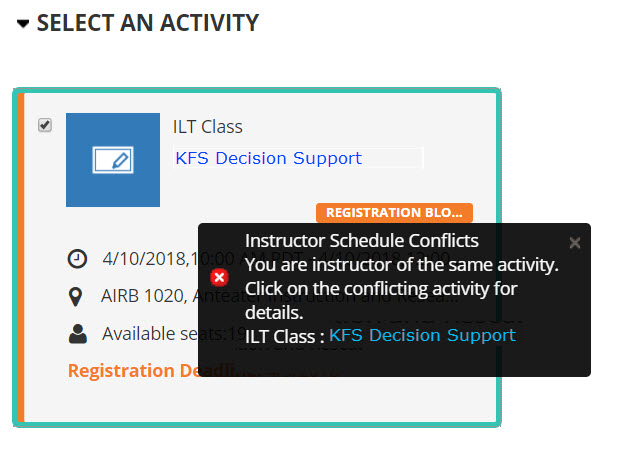
UCLC ILT registration screen showing an orange REGISTRATION BLOCKED message
The REGISTRATION BLOCKED message indicates unmet prerequisites or other enrollment restrictions. Click the orange link for details.
UCLC ILT blocked registration details screen showing the specific reason registration was denied
This screen explains the specific reason registration was blocked, such as the user being listed as the course instructor.

If there are no registration issues, the user can now see that they are registered for the class and can select the START button.
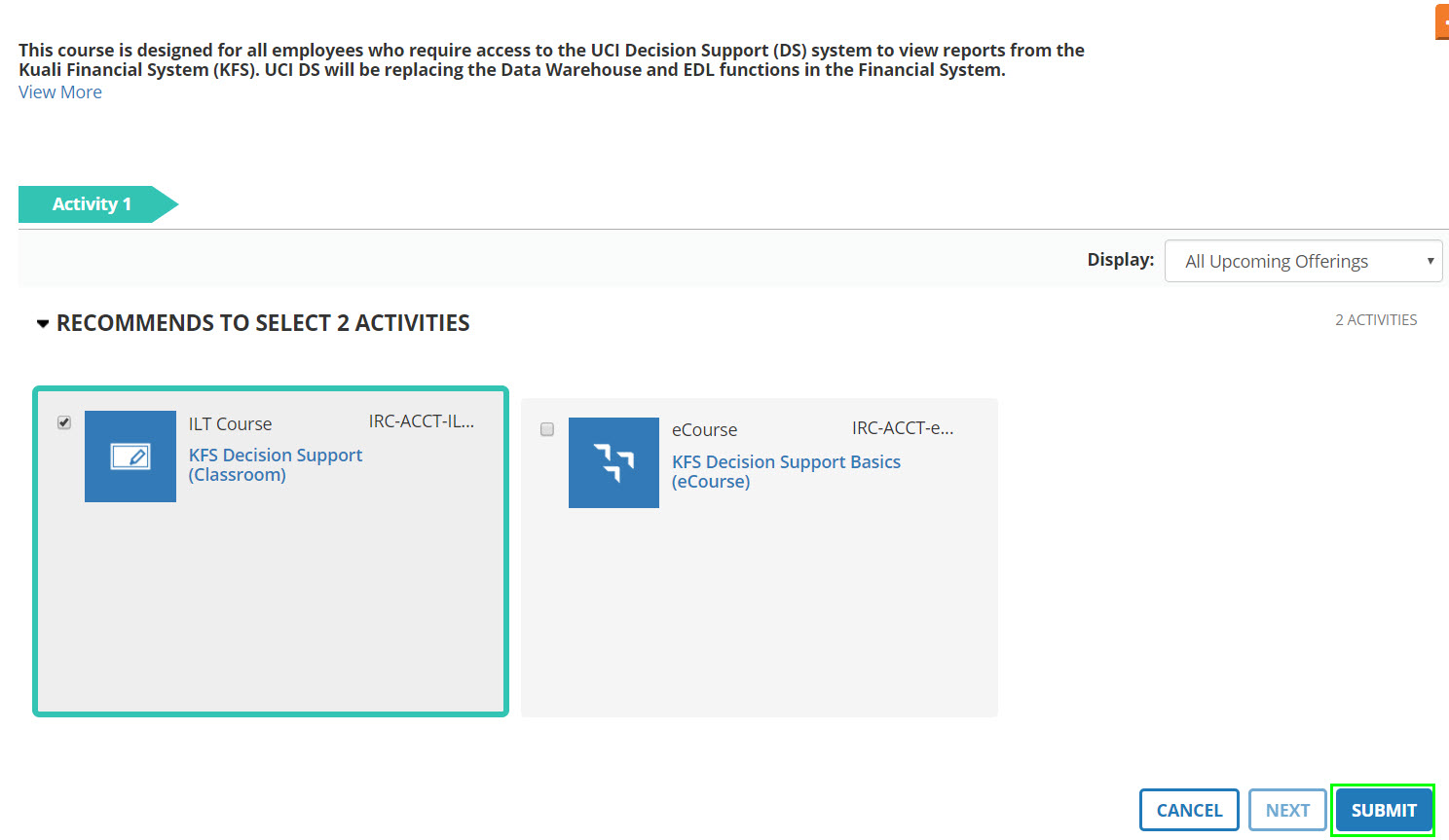
UCLC ILT registration confirmation screen showing successful enrollment details
When registration succeeds, a confirmation screen displays the registered course details.

The REGISTERED icon will appear to let users know that they have registered for the ILT class.

UCLC course listing displaying a REGISTERED icon confirming successful ILT enrollment
The REGISTERED icon confirms that enrollment in the Instructor-Led Training course is complete.

For REGISTRATION BLOCKED or questions regarding KFS prerequisites, please contact the KFS help desk kfs@uci.edu. For ANY OTHER questions or issues regarding the UCLC system, please contact the UCLC help desk uclearningcenter@uci.edu.