Guide to Budgeting for Income
UCI requires all Control Accounts to end the fiscal year with an income variance of zero. To accomplish this, you will need to use the Budget Appropriation Transaction (BAT) e-document to increase or decrease your Income Budget so that it matches your actuals. This help guide explains this process in detail.
Income Object Code Variances
Income Budget represents the revenue you are projected to receive over the course of the fiscal year, and it is compared to your Income Actuals to track progress. The income budget also serves as the source to support your expenditure budget. In KFS, the Variance column for Income Object Codes is calculated differently than for expenses. For Income Object Codes:
Unrealized Income Variance = Actuals – Income Budget.
- A positive variance means that actual income exceeds the projected income budget (good).
- A negative variance shows the amount of projected income that is unrealized (bad if nearing the end of the fiscal year and actual revenues fall short of projections).
- At Fiscal Year End, income budget on Control Accounts must be adjusted so that it is equal to actual realized income so that the variance between them is zero.
Budgeting Income (Income-to-Expense)
In the following example, a Sales & Service Account has earned actual income that exceeds the department's original income budget. As a result, the account has an income variance of $17.00.
In the campus General Ledger reports, users have the ability to select a summary by object to find exactly which income object code contains the variance. Users should select "Summary by Object" from the dropdown menu at the top of the report for a detailed view of the account.
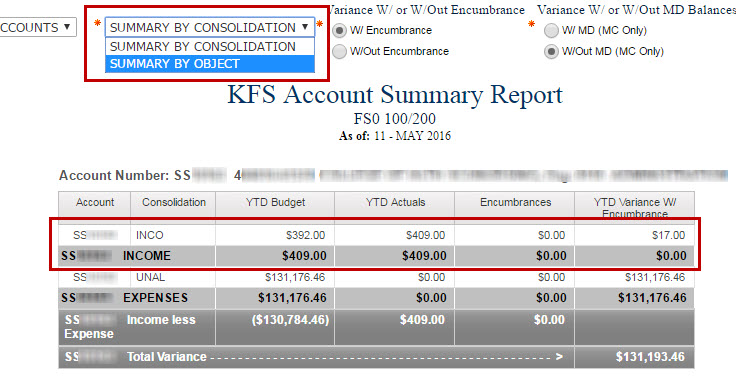
In the Summary by Object view, the report shows that Object Code R821 has a variance of $17.00. Using this information, departments can create a Budget Appropriation Transaction to increase the budget to clear the $17.00 variance.

At Fiscal Year End, the department must adjust Control Accounts so that all income variances are 0. Since income variance is calculated by subtracting Actuals - Income Budget, the department can simply increase the Income Budget if there is a positive variance, or decrease if there is a negative variance, so that Budget and Actuals match, and the variance is 0. In this example, the budgeted income is increasing, therefore the expense budget is increased by the same amount.
Reports to Help Identify Income Variances
To help identify income variances that need to be cleared, the following reports can help with this process. It is recommended to use the KFS Organization Account Status Report.
| Name | Notes | Sample |
|---|---|---|
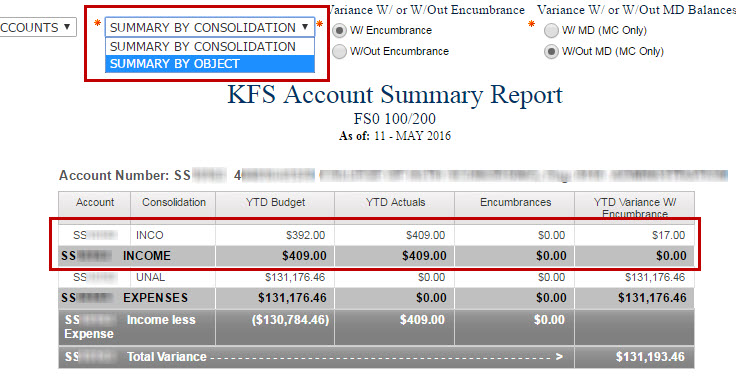
| Account Summary Report | The Account Summary Report shows “as of” totals and balances for Accounts by Consolidation Code and by Object Code. Income is shown at the top of the report, and a summary by object view can help identify what income object codes need an increase in budget. |
|
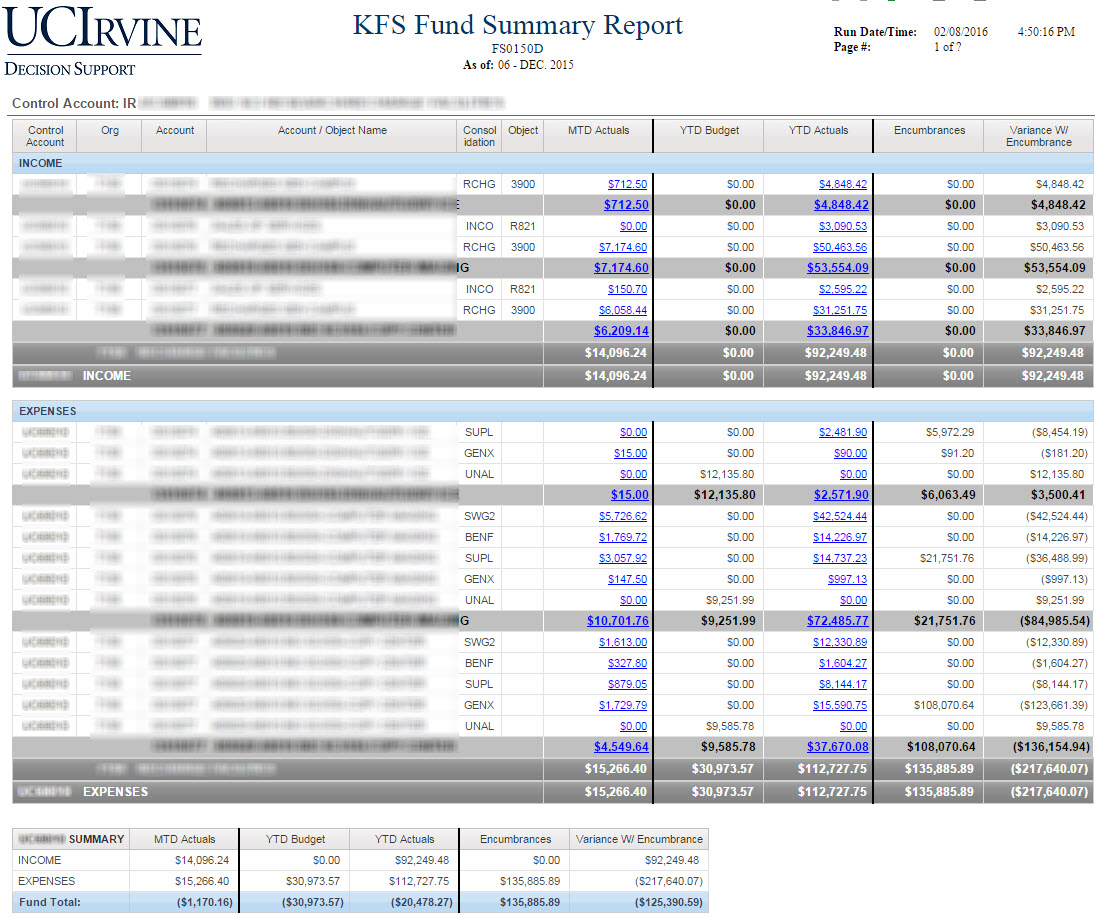
| Fund Summary Report | The Fund Summary Report shows “as of” totals and balances of a particular fund by Account and by Consolidation Code. Income is shown at the top of the report, and a summary by object can be shown by selecting the dropdown for Expense by Object. |
|
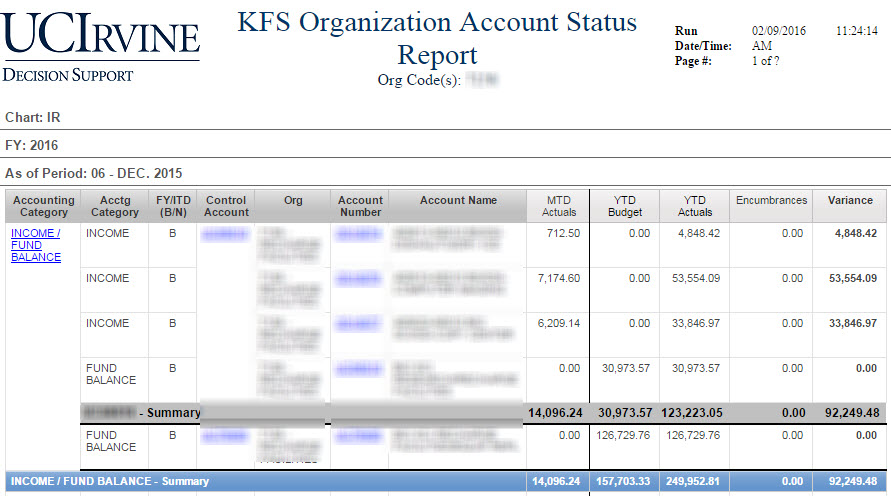
| Organization Account Status | Quick overview of each account in a unit, showing all income activity at the top. Used to easily identify income variances, as well as expenditure accounts that are not solvent. Clicking on the Accounts in the report will show a income activity by object code and expenditure activity by consolidation to help identify budget alignment needs. |
|
For more information on reports, see the Financial Reports Guide.
Creating the Budget Appropriation Transaction (BAT)
When you create your BAT e-document to address a positive variance, you should enter both the Income and Expense Budget entries as accounting lines in the To/Increase section and as positive numbers. The easiest way to remember this is that both the income and expense budgets are increasing.
In the example, the department creates a BAT eDoc to increase the Income Budget by $17.00 for the Sales & Service Account and Object Code combination where the actual income was recorded. They also increase their Unallocated Expense Budget by $17.00 in the same account.
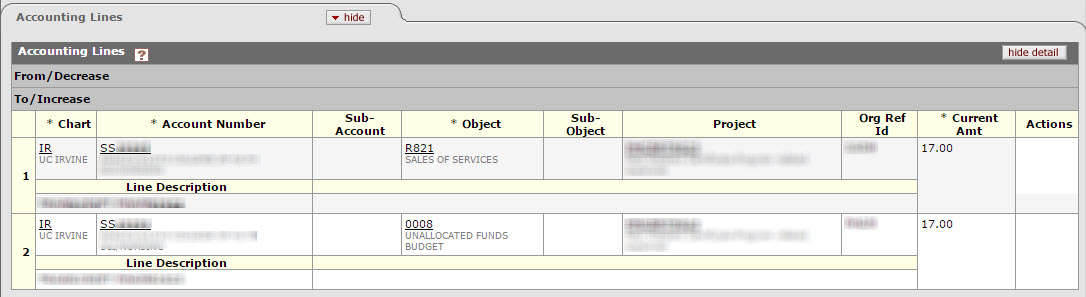
The screenshot below shows the account after the Budget Appropriation Transaction has posted. Income variance is now zero, and the Unallocated Expense Budget category has increased by $17.00. The department has successfully completed this step of the fiscal close process.

Operating Accounts Versus Control Accounts
Income actuals can be deposited to either an “Operating” account or a “Control Account” (UCxxxx). Operating accounts are for income and expenses. Control Accounts can only be used for income and balance sheet transactions. See explanation on KFS Accounts. If income was deposited to a Control Account (UCxxxxx), the corresponding expense budget will need to be recorded in the operating account of the activity.
Create a CSV File to Import into the Budget Appropriation Transaction (BAT)
To quickly address income variances for Fiscal Year Budgeted Funds, you can create a CSV file to upload directly to the BAT to save time. Below is an example of the process using the DW Query Tool to address POSITIVE Variances. Other reports can accomplish the same goal.
Setting up your report:
-
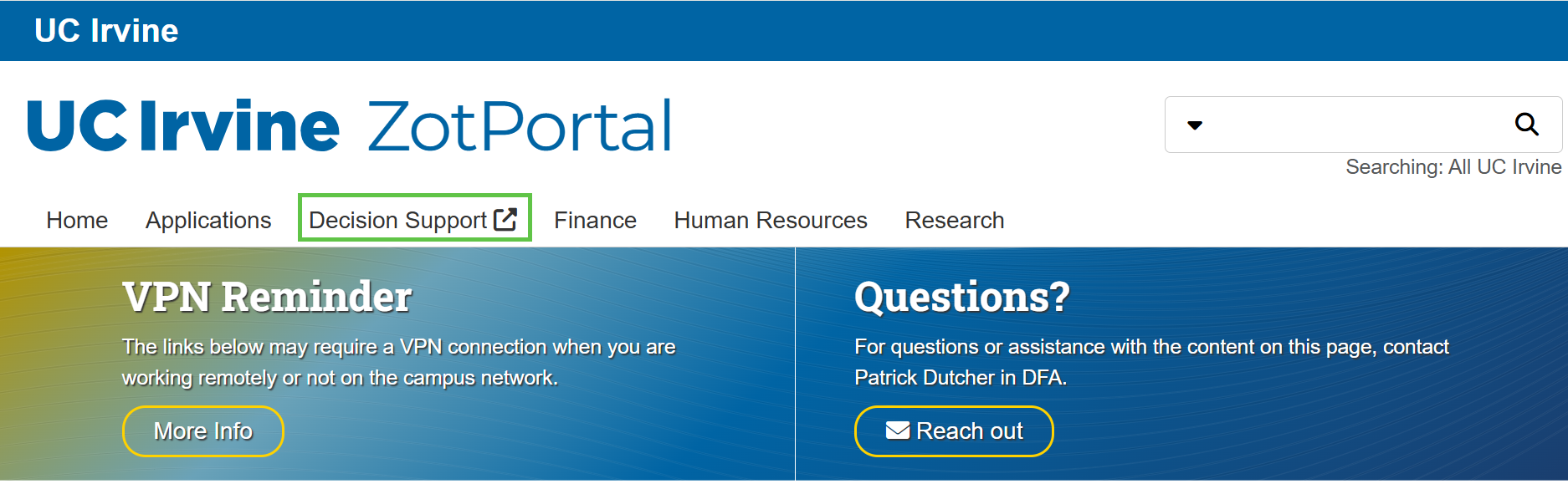
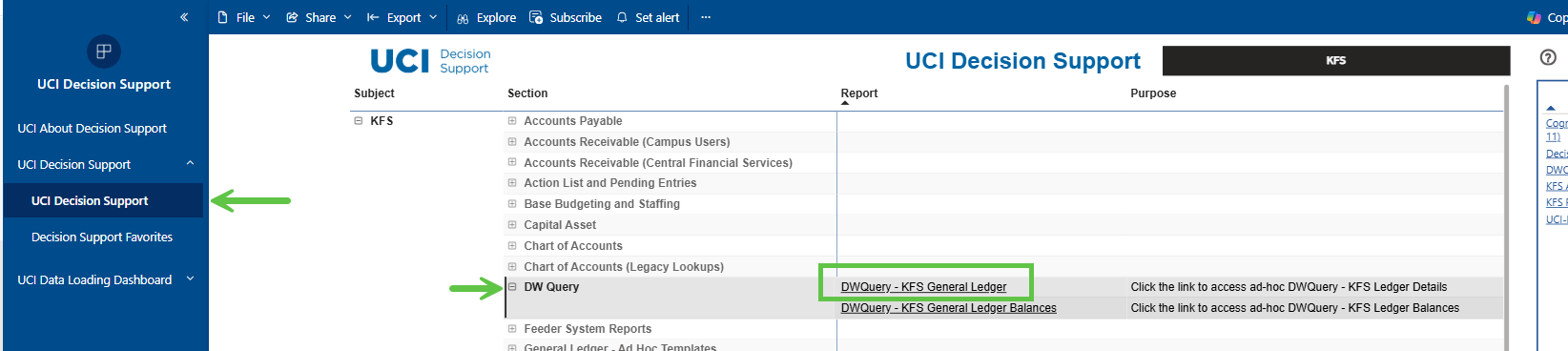
Log into DW Query by going to ZotPortal and Selecting the Decision Support tab. Select the UCI DeCistion Support link, expand the DW Query section, and select "DWQuery - KFS General Ledger".
2. Deselect the Fiscal Period Checkbox, then select all Fiscal Periods (click inside the Fiscal Period Box, then hit Ctrl+A on your keyboard)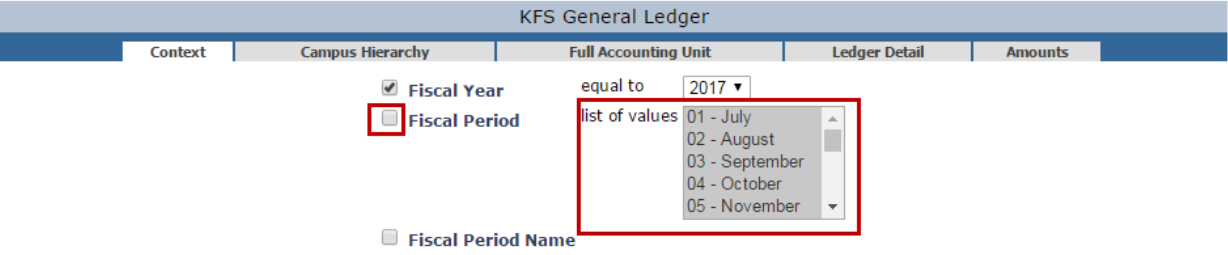
The DW Query context settings with the Fiscal Period checkbox deselected and all Fiscal Periods highlighted using Ctrl+A to include all periods in the query.
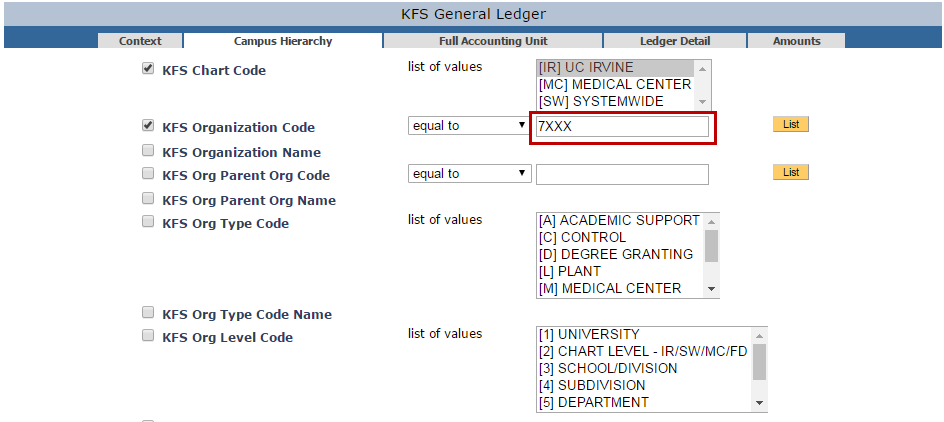
3. On the Campus Hierarchy Tab, select your Chart Code, and KFS Organization Code, or any other Org Field you'd like to narrow your query by.
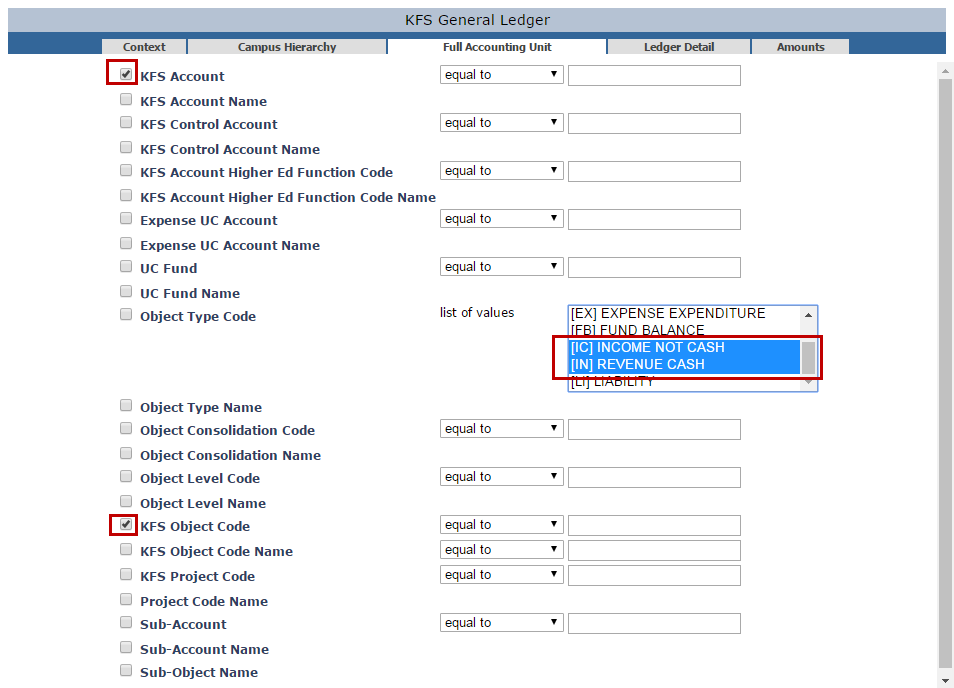
4. On the Full Accounting Unit Tab, make sure the KFS Account checkbox is selected, and the KFS Object Code is selected. Also highlight [IC] and [IN] in the Object Type Code box (Hold CTRL on your keyboard to multi-select)
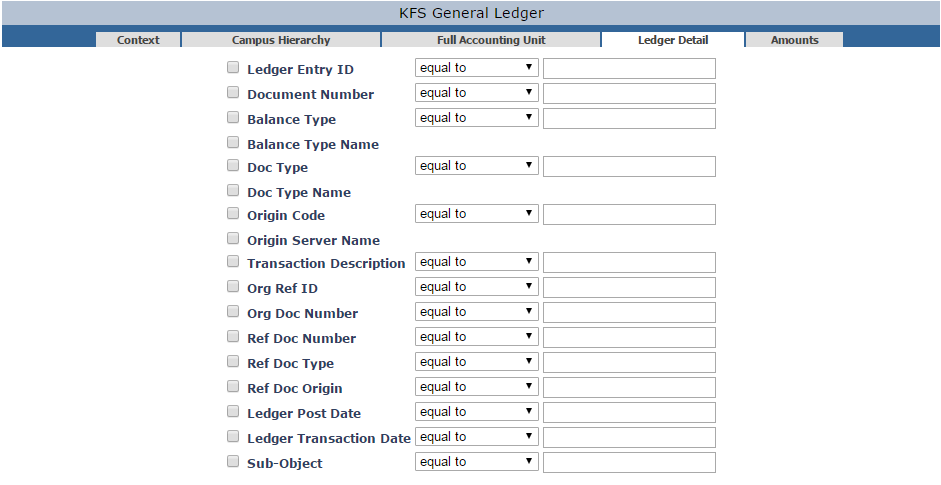
5. On the Ledger Detail Tab, uncheck all checkboxes on this tab.
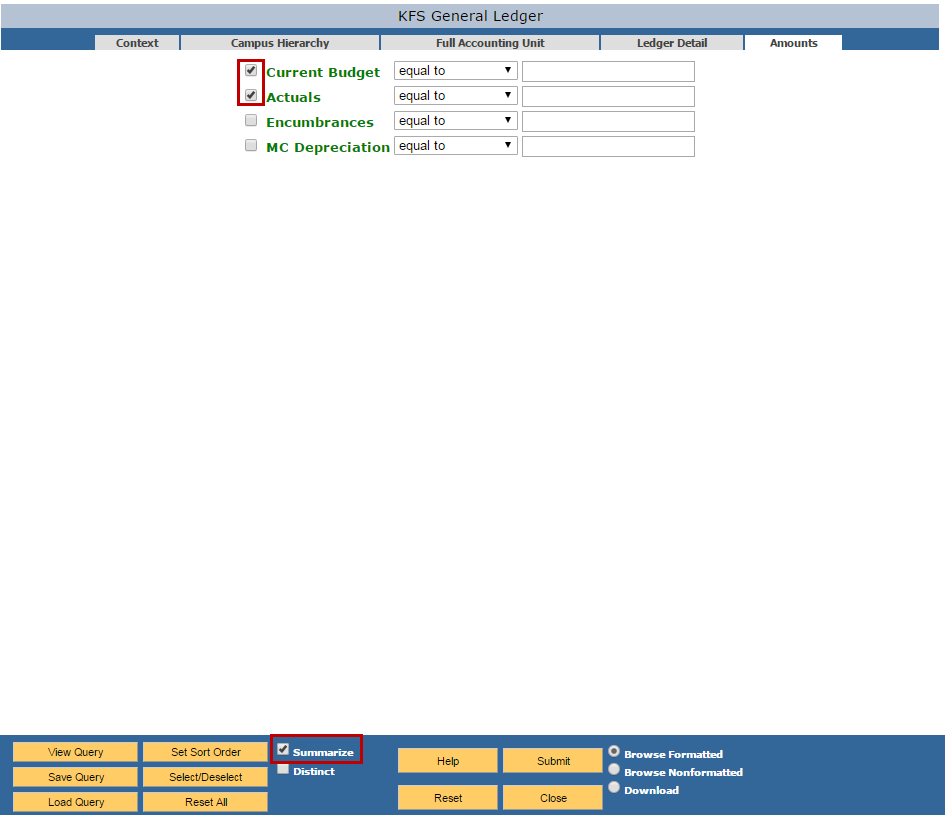
6. On the Amounts Tab, select the Current Budget and Actuals checkbox. Check the Summarize checkbox at the bottom of the page. Then select Download, click Submit then open the filed in Excel.
7. In Excel, create a Variance column for income. The Unrealized Income Variance = Actuals – Income Budget.

Prepare the CSV Upload Template for the BAT
For additional help with this process, take a look at the guide on how to import lines from a csv file:
How to Import Lines into a KFS Document.
-
In ZotPortal, you can download the Import Lines Template for BAT under KFS Financial Processing, Help Guide.
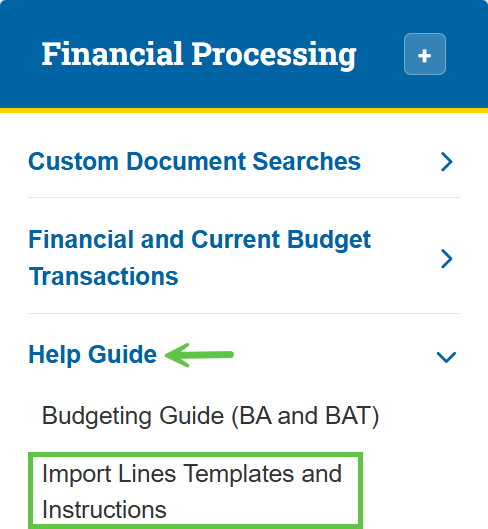
The KFS Financial Processing Help Guide section in ZotPortal where the Import Lines Template for BAT can be downloaded. -
Download the template for the Budget Appropriation Transaction - Non KBM (you may need to use the KBM template if you are a Kuali Budget Module User)
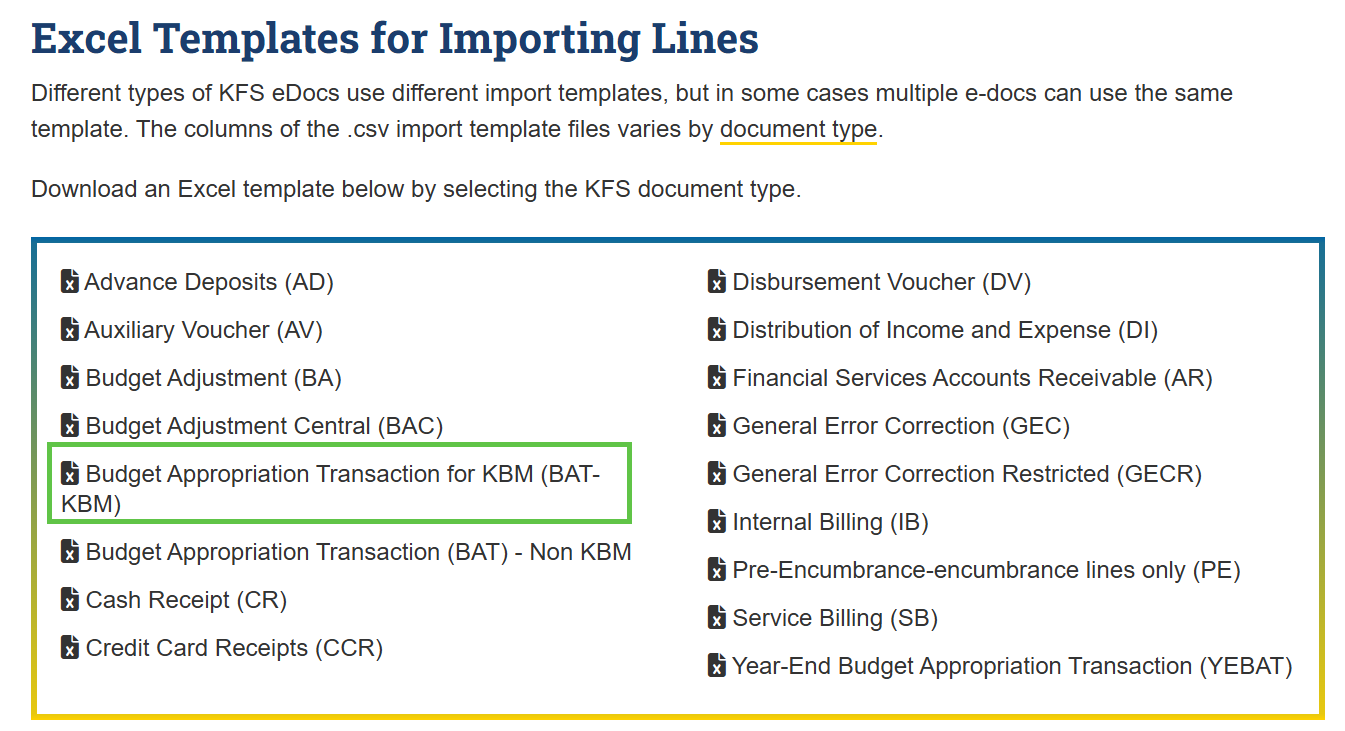
The template download page showing the Budget Appropriation Transaction - Non KBM template; Kuali Budget Module users should select the KBM template instead. -
Copy and paste the positive variance lines to the appropriate columns in the template. Create a corresponding line for increasing the expense budget object codes. (Shown in red)
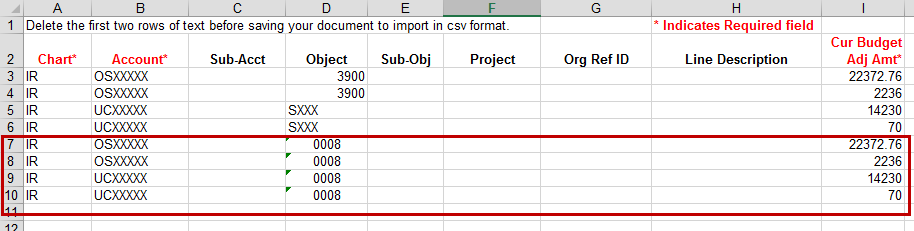
The completed BAT CSV upload template with positive variance lines copied from the Excel report and corresponding expense budget object code lines added (highlighted in red) to match each income entry. - Upload your saved csv document into the BAT document.