How to reconcile CTS Ghost Card Accounts
Reconciling CTS Ghost Card Expenses
Reconciling CTS Ghost Card expenses means ensuring that charges made on the CTS Card are correctly accounted for in KFS. Since CTS Card charges are posted directly to the cardholder’s default account, they must be transferred to the appropriate account through a Travel Reimbursement (TR). This guide walks you through the three most common reconciliation scenarios.
CTS Ghost Card transactions are charged directly to the University. Transactions made with the CTS Card are posted to the cardholder’s default account as soon as they are received from the bank. These transactions will have a document number that starts with “USBT” (indicating a USBank transaction) and a document type of “DITM” (a KFS document type used for bank-imported transactions).

When a Travel Reimbursement (TR) is created, the reimbursement amount is credited to the default account, while the same amount is debited from the account specified in the TR.


Reconciling CTS Card Credits
The following scenarios explain how to handle CTS Card credits depending on whether the original expense has already been reconciled and which account was used. Use the table below to find your situation, then follow the steps in the corresponding section.
| Scenario | Action Required |
|---|---|
| Full refund issued; original expense not yet reconciled | Email Travel Accounting to clear both transactions |
| Partial refund issued; original expense not yet reconciled | Import both the charge and the credit on the same TR eDoc |
| Original expense already reconciled to a different account | Process a General Expense Correction (GEC), then email Travel Accounting with the GEC document number |
Scenario 1: Full Refund — Expense Not Yet Reconciled
If the original expense has not been reconciled and the vendor issues a full refund, email Travel Accounting at travel-accounting@uci.edu to request that both the expense and the credit be cleared from KFS.
The cardholder’s default account receives expenses and credits directly from USBank. Once Travel Accounting has cleared both transactions, no further action is needed from you.


Scenario 2: Partial Refund — Expense Not Yet Reconciled
If the original expense has not been reconciled and a partial refund is issued by the vendor, both the original charge and the credit must be imported on the same TR eDoc. Follow the steps below:
Step 1: In the CTS Card expense lookup, select both the original charge and the partial credit, then import them onto the same TR eDoc.

Step 2: In the Expense Total tab, locate the amount shown in the “Less CTS Charges” line. This is the amount you will enter in the Accounting Lines tab.
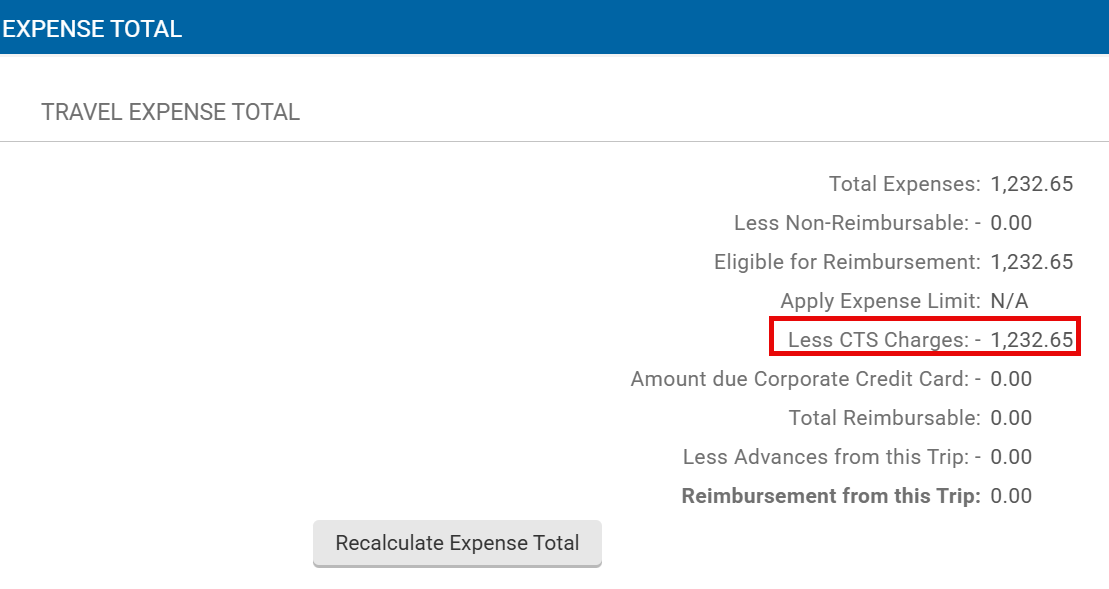
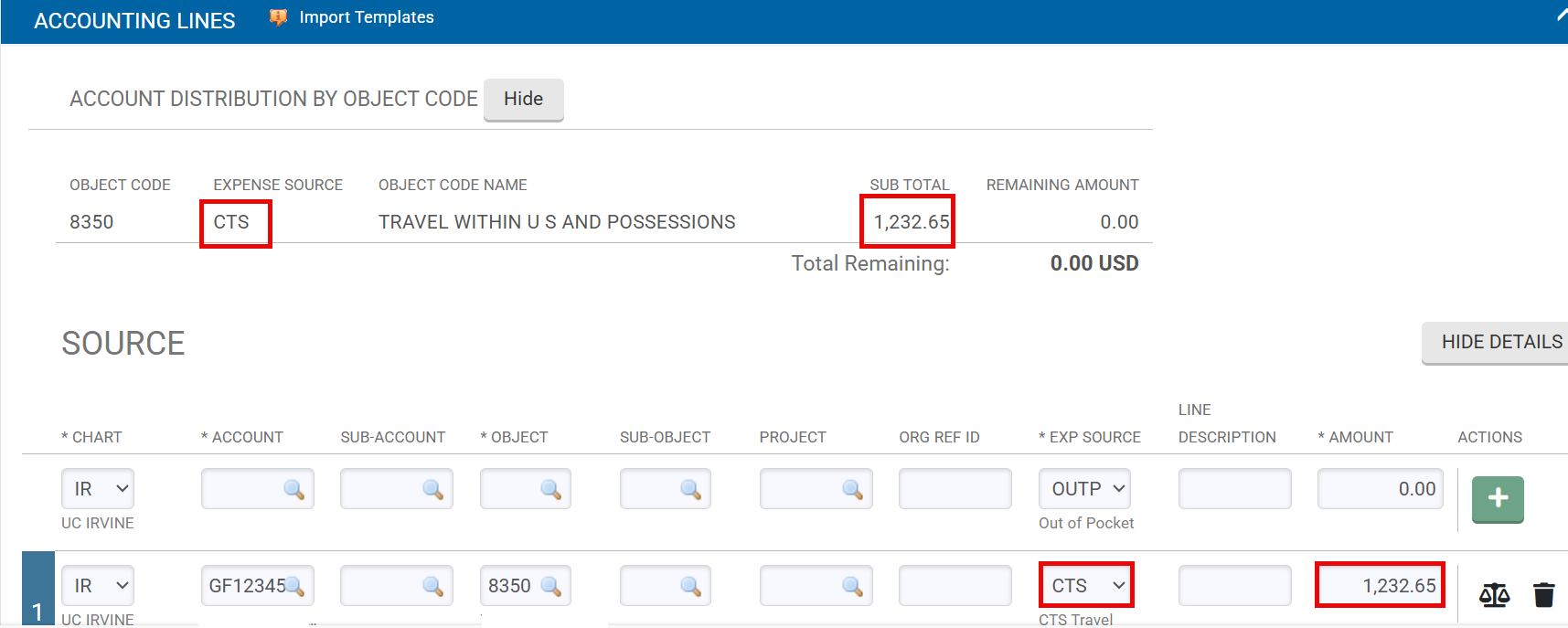
Step 3: In the Accounting Lines tab, select CTS as the Expense Source and enter the amount matching the “Less CTS Charges” total from the Expense Total tab.
Scenario 3: Expense Already Reconciled to a Different Account
If the original expense has already been reconciled using an account different from the default account, you will need to process a General Expense Correction (GEC). A GEC is a KFS document used to transfer a charge from one account to another. Follow the steps below:
Step 1: Process a GEC to transfer the credit from the cardholder’s default KFS account to the account that was used on the original Travel Reimbursement (TR) eDoc.
Step 2: Once the GEC has been processed, email travel-accounting@uci.edu with the GEC document number so Travel Accounting can clear the credit.